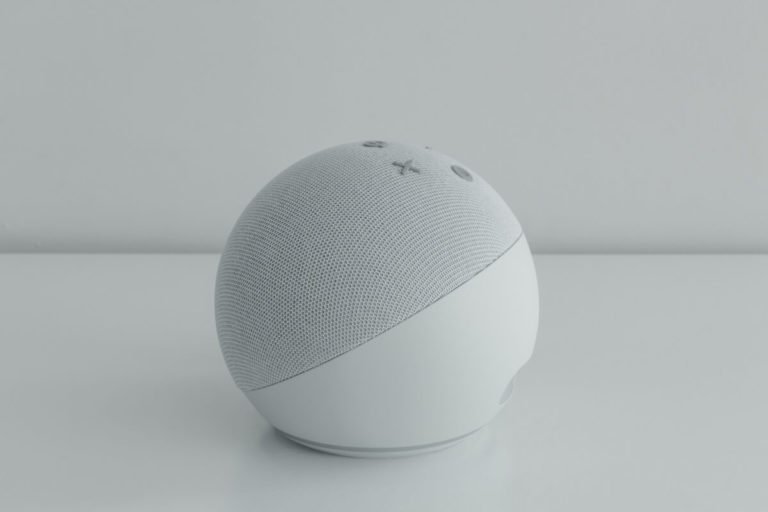
When your trusted Amazon Echo Dot starts acting more like a digital diva than a helpful assistant, performing a reset often feels like the last resort. Yet, understanding the Common Reasons and Scenarios for Resetting an Echo Dot can save you a world of frustration, turning what seems like a daunting task into a simple, effective troubleshooting step. From mysterious silence to stubbornly disconnected smart lights, there's usually a specific reset that can bring your device back to its prime.
Before you dive headfirst into the reset abyss, it’s crucial to know that not all resets are created equal. Think of it like rebooting your computer versus reinstalling its operating system. One is a quick refresh, the other a complete overhaul. This guide will walk you through precisely when and why you'd choose each, equipping you with the knowledge to troubleshoot like a pro and get your Echo Dot humming harmoniously once more.
At a Glance: Quick Fixes & Full Resets for Your Echo Dot
- Soft Reset (Reboot) First: Always try unplugging your Echo Dot for 30 seconds to fix minor glitches, unresponsiveness, or temporary Wi-Fi hiccups. It's the simplest solution and preserves all your settings.
- Factory Reset for Bigger Problems: If a reboot doesn't work, or you're selling/gifting your device, a factory reset is necessary. This wipes all personal data, settings, and connections, restoring it to its original state.
- Back Up What Matters: Before a factory reset, make note of your smart home device connections and Alexa skills, as you'll need to re-add them.
- Stable Power & Wi-Fi Are Key: Ensure your Echo Dot is connected to a reliable power source and a strong Wi-Fi network throughout any reset process.
- Two Ways to Factory Reset: You can usually perform a factory reset via the Alexa app or by pressing specific buttons on the device itself.
- Re-setup Required: After a factory reset, you'll need to set up your Echo Dot again through the Alexa app, just like when it was new.
- Amazon Support is Your Friend: If you encounter persistent issues or confusion, don't hesitate to reach out to Amazon's customer support.
The "Why": Unpacking Common Scenarios for an Echo Dot Reset
Your Echo Dot is designed for seamless interaction, but sometimes, even the most advanced tech needs a little kickstart. Knowing the specific problem can help you decide if a reset is truly necessary, and which type to perform. Here are the most common scenarios that lead users to consider hitting the reset button.
When Your Echo Dot Goes Mute: Unresponsiveness
Imagine this: You confidently ask Alexa for the weather, and... silence. No light ring, no verbal response, just a blank stare from the device. This unresponsiveness is a classic sign that something has stalled in your Echo Dot's internal software or hardware. It might be frozen, stuck in a loop, or simply having a bad day. A soft reset (reboot) is often the magic bullet here, clearing temporary memory and allowing the device to start fresh. It’s like turning your computer off and on again when an application freezes – a simple act that resolves a surprising number of issues.
The Wi-Fi Wrangle: Connectivity Conundrums
Alexa’s intelligence relies entirely on a stable internet connection. If your Echo Dot suddenly can't connect to Wi-Fi, drops its connection frequently, or displays an orange light ring indicating network issues, you've got a connectivity problem on your hands. While the issue could lie with your router, sometimes the Echo Dot itself loses its internal network configuration or gets stuck trying to connect to an old, non-existent network. A soft reset can often re-establish the connection, but if the problem persists, a factory reset might be needed to completely clear network settings and start fresh. For more specific guidance on getting your device back online, you might want to troubleshoot Echo Dot Wi-Fi issues.
Software Shenanigans: Glitches and Bugs
Even the most robust software can develop quirks. Perhaps Alexa struggles to understand your commands, skills don't launch correctly, or the device exhibits erratic behavior like playing music randomly or responding to phantom requests. These kinds of software glitches, often caused by corrupted temporary files, failed updates, or conflicting processes, are strong candidates for a reset. A soft reset will often clear these minor bugs, but for more deeply embedded or persistent software issues, a factory reset ensures a completely clean slate, effectively reinstalling the device’s core operating system. When your device seems completely out of sorts and a simple reboot doesn't help, learning how to fix an unresponsive Alexa device often involves these more drastic steps.
Smart Home Snags: Integrations Gone Awry
One of the Echo Dot's greatest strengths is its ability to control smart home devices. But what happens when that integration goes south? Your smart lights won't respond, the thermostat acts independently, or new devices simply refuse to connect. These integration issues can stem from a variety of sources: a change in your Wi-Fi password, a corrupted connection between the Echo Dot and a smart home hub, or an internal glitch preventing it from communicating with other devices. While troubleshooting the individual smart device or skill is usually the first step, a factory reset of the Echo Dot can be necessary to clear all existing smart home connections and start the linking process from scratch. If you're struggling with multiple integrations, you may want to review how to manage your Alexa skills and reconnect them post-reset.
A Fresh Start: Preparing for Transfer or Sale
This is arguably the most straightforward reason for a factory reset. If you’re giving your Echo Dot to a friend, selling it online, or upgrading to a newer model, you absolutely must perform a factory reset. This ensures that all your personal data – your Amazon account link, saved Wi-Fi networks, smart home device connections, calendar entries, voice recordings, and custom skills – are completely erased. This protects your privacy and provides the new owner with a device that’s ready for their own setup, just as if it were brand new. It's a critical step in preparing a device for sale or transfer.
Before You Reset: Critical Checks and Considerations
Before you plunge into any reset process, a few preventative steps and important considerations can save you from unnecessary frustration or data loss. Treat this as your pre-flight checklist.
Power Up and Connect: The Foundation
An unstable power source or a flaky Wi-Fi connection can lead to failed resets or new problems. Ensure your Echo Dot is securely plugged into a reliable power outlet, and that your Wi-Fi network is stable and strong. If your Wi-Fi has been temperamental, try restarting your router and modem first. A consistent connection is vital for the device to properly communicate with Amazon’s servers during and after a reset, especially for re-setup and software updates.
Backup Your Brain: What to Know About Data
When we talk about "backing up data" for an Echo Dot, it's a bit different from a smartphone. Your Echo Dot doesn't store photos or documents in the traditional sense. However, a factory reset will erase:
- Your Amazon account link: The device will be de-registered from your account.
- Saved Wi-Fi networks: You’ll need to re-enter your Wi-Fi password during setup.
- All connected smart home devices: These links are severed.
- All enabled Alexa skills: You'll need to re-enable them.
- Personalized settings: Alarms, timers, language preferences, voice profiles, etc.
There’s no "backup" button to save these settings directly from the device. Instead, you'll want to mentally or physically note which skills you use regularly and which smart home devices are paired. This will make the re-setup process much smoother.
Know Your Reset: Reboot vs. Factory Default
Understanding the distinction between a soft reset (reboot) and a factory reset is paramount.
- Soft Reset (Reboot): This is a simple power cycle. It clears temporary memory, resolves minor software hang-ups, and refreshes network connections without altering any of your personal settings or data. It’s your go-to for quick fixes.
- Factory Reset: This is a complete wipe. It erases everything user-specific, returning the device to the state it was in when you first unboxed it. This is for persistent issues, security, or transfer.
Always start with a soft reset for minor issues. Only escalate to a factory reset if the problem persists or if you need to prepare the device for a new owner.
Model Matters: Following the Right Steps
While the general principles are similar, the exact buttons or app menus for a factory reset can vary slightly between different Echo Dot generations. Always try to follow instructions specific to your Echo Dot model. The instructions provided in this guide cover the most common methods, which apply to many recent generations.
Don't Go It Alone: When to Call for Backup
If you've tried the recommended resets and your Echo Dot is still misbehaving, or if you encounter difficulties during the reset process itself, don't hesitate to contact Amazon Support. They have advanced diagnostic tools and can offer model-specific advice or determine if your device needs a repair or replacement. There’s no shame in seeking expert help!
Understanding Your Options: Soft Reset vs. Factory Reset
Now that you know the why and the what-ifs, let's get into the how. We’ll start with the least intrusive option and work our way up.
Option 1: The Gentle Nudge (Soft Reset/Reboot)
The soft reset is your first line of defense against most minor Echo Dot woes. It's quick, painless, and preserves all your settings.
When to Use a Soft Reset
- Unresponsiveness: Alexa isn't responding to commands, or the light ring is frozen.
- Intermittent Connectivity: The Wi-Fi drops occasionally, or the device struggles to connect after a power outage.
- Minor Software Glitches: A specific skill isn't working, or the device is acting slightly erratic (e.g., repeating parts of commands).
- Audio Issues: Sound isn't coming through, or it's distorted.
Essentially, if the problem feels like a temporary hiccup rather than a fundamental flaw, a soft reset is your best bet.
How to Perform a Soft Reset
This couldn't be simpler:
- Unplug it: Carefully disconnect the power adapter from the back of your Echo Dot.
- Wait: Give it a full 30 seconds. This allows any residual power to drain and ensures a complete power cycle. Don't rush this step!
- Plug it back in: Reconnect the power cord.
- Listen and Watch: Wait for the device to boot up. You'll usually see the light ring cycle through colors, and Alexa will eventually greet you with a friendly "Hello."
- Test: Once it's fully started, try a command to see if the issue is resolved.
Option 2: The Clean Slate (Factory Reset)
When a soft reset doesn't cut it, or if you're preparing for a device transfer, the factory reset is your answer. This is a more drastic measure, but highly effective for stubborn issues. This is the big kahuna of resets, and understanding how to reset your Echo Dot thoroughly often involves mastering this step.
When a Factory Reset is Your Best Bet
- Persistent Unresponsiveness: Even after multiple soft resets, your Echo Dot remains unresponsive or freezes frequently.
- Unresolvable Connectivity Problems: The device consistently fails to connect to Wi-Fi, even after troubleshooting your network and soft resetting the Dot.
- Deep Software Corruption: Glitches or errors are severe and recurring, affecting core functionality.
- Transfer of Ownership: You are selling, gifting, or otherwise giving away your Echo Dot.
- Security Concerns: You want to ensure all personal data is erased from the device for privacy.
Crucial Precautions Before the Big Erase
Before you initiate a factory reset, take a moment for these vital steps:
- Disable Smart Home Devices: If your Echo Dot is linked to smart home devices (lights, thermostats, plugs), it's a good practice to unlink or disable them in the Alexa app first. While the reset will sever the Dot's connection, unlinking them cleanly can prevent orphaned connections in your smart home ecosystem. Consider how you secure your smart home devices and ensure this transition is smooth.
- Note Key Skills and Integrations: As mentioned, all your enabled Alexa skills and third-party integrations (like Spotify, calendars, smart home hubs) will be removed. Make a list of your favorites so you can easily re-add them after the reset.
Method 1: Wiping the Slate Clean via the Alexa App
This is often the easiest and most recommended method, as it's guided by your phone and less prone to button-timing errors.
- Open the Alexa App: Launch the Alexa app on your smartphone or tablet.
- Navigate to Devices: Tap the "Devices" icon in the bottom navigation bar.
- Select Your Echo Dot: Tap "Echo & Alexa," then choose the specific Echo Dot you wish to reset from the list.
- Find Device Settings: Scroll down until you see "About" or "Registered To," then look for a "Factory Reset" option or similar. (The exact wording might vary slightly by app version and device model, but it's usually clear).
- Confirm the Reset: The app will likely ask you to confirm your decision, often with a warning about data loss. Confirm to proceed.
- Patience is a Virtue: The reset process will begin. Your Echo Dot's light ring will cycle, and the device will eventually indicate it's ready for setup (often by turning orange). This can take 2-3 minutes.
Method 2: Hands-On Reset with Device Buttons (Manual)
If you don't have access to the Alexa app, or if the device is completely unresponsive, a manual button reset is your fallback. The specific buttons vary by generation:
- For Echo Dot (1st Gen): Find the "Microphone Off" and "Volume Down" buttons. Press and hold both simultaneously for about 20 seconds.
- For Echo Dot (2nd Gen): Find the "Microphone Off" and "Volume Down" buttons. Press and hold both simultaneously for about 20 seconds.
- For Echo Dot (3rd Gen, 4th Gen, 5th Gen): Locate the Action button (the circular button with a dot in the center). Press and hold this button for about 25 seconds. The light ring will turn orange, then blue, then orange again.
- For Echo Dot with Clock: Same as 3rd/4th/5th Gen, use the Action button.
General Steps for Button Reset (using the Action button as an example for recent models):
- Locate the Button: Identify the correct button(s) for your Echo Dot model.
- Press and Hold: Press and hold the designated button(s) for the specified duration (usually 20-25 seconds).
- Watch the Light Ring: The light ring will change colors, typically turning orange, then blue, then possibly back to orange.
- Release: Release the button(s) once the light ring has clearly indicated the reset is underway (often a spinning orange light).
- Wait: The device will complete the reset. This process can take approximately 5-7 minutes. Once finished, the light ring will likely turn solid orange, indicating it's in setup mode.
Life After Reset: What to Expect and How to Rebuild
A factory reset is just the beginning of a new chapter for your Echo Dot. Here's what comes next.
The Re-Setup Journey
Once your Echo Dot has completed its factory reset, it will be in its out-of-the-box state, waiting to be configured.
- Open the Alexa App: Launch the app on your mobile device.
- Add Device: Tap the "Devices" icon, then the "+" (plus) sign in the top right corner.
- Follow On-Screen Prompts: Select "Add Device," then "Amazon Echo," and choose your Echo Dot model. The app will guide you through connecting it to your Wi-Fi network and registering it to your Amazon account. Have your Wi-Fi password handy!
Reconnecting Your Smart Home and Skills
Since a factory reset wipes all personal configurations, you’ll need to rebuild your smart home ecosystem and re-enable your favorite Alexa skills.
- Smart Home Devices: Go to the "Devices" section in the Alexa app, then "All Devices" or specific categories (Lights, Plugs, etc.). You'll need to rediscover or re-add each device. For some smart home hubs, you might need to re-link the hub's skill first. Have your smart device login credentials ready.
- Alexa Skills: Go to "More" > "Skills & Games" in the Alexa app. Search for your preferred skills and re-enable them. You might need to sign in to third-party accounts (e.g., Spotify, Hue) again to link them.
This process can be a bit tedious if you have many connected devices and skills, but it's essential for your Echo Dot to regain its full functionality.
Staying Current: Software Updates
After a fresh setup, it's always a good idea to ensure your Echo Dot is running the latest software. While Echo devices usually update automatically in the background, you can prompt a check by saying, "Alexa, check for software updates." Keeping the firmware current helps maintain security, performance, and compatibility with new features and skills.
Impact on Your Amazon Account and Other Devices
Rest assured, resetting one Echo Dot does not affect your Amazon account itself, nor does it impact other Alexa devices registered to the same account. Your shopping lists, saved music services, and voice profiles remain tied to your Amazon account. However, any other Echo devices that rely on the same Wi-Fi connection might also need their network settings checked if you've changed your Wi-Fi password as part of troubleshooting. But the reset is localized to the specific device you targeted.
When Things Get Tricky: Troubleshooting Reset Roadblocks
Even resetting an Echo Dot can hit a snag. If your device isn't resetting as expected, here are some common troubleshooting steps.
Power Play: Is It Plugged In?
It sounds obvious, but ensure your Echo Dot is securely plugged into a working power outlet. Try a different outlet or power adapter if you suspect an issue with the current one. A device without consistent power won't complete any reset.
Network Nudges: Wi-Fi Stability
For app-based resets, a stable Wi-Fi connection is crucial. If your phone or tablet is struggling with Wi-Fi, the Alexa app might not be able to communicate with the Echo Dot. Try moving closer to your router, restarting your router and modem, or attempting the manual button reset method instead.
The Button Ballet: Timing is Everything
If you're using the manual button method, timing is critical. Ensure you're pressing and holding the correct button(s) for the exact duration specified for your model. Releasing too early or holding too long can prevent the reset from initiating. Consult Amazon's official support pages for model-specific button combinations if you're unsure.
Instructions, Please: Double-Checking Your Model
Echo Dots across generations (1st, 2nd, 3rd, 4th, 5th) have different button configurations for manual resets. A 1st Gen Echo Dot has different buttons to press than a 4th Gen, for example. Confirm your Echo Dot's generation and verify you're following the precise instructions for that model.
Still Stuck? Calling in Amazon's Cavalry
If you've diligently tried all the above steps and your Echo Dot remains stubborn, it's time to reach out to Amazon Support. Provide them with details of your Echo Dot model, the troubleshooting steps you've already attempted, and the exact symptoms you're experiencing. They can offer specialized guidance, initiate a deeper diagnostic, or discuss warranty and replacement options.
Final Thoughts: Empowering Your Echo Dot Experience
Understanding when and how to reset your Echo Dot transforms you from a frustrated user into a confident troubleshooter. Most common issues, from a simple freeze to persistent connectivity woes, can be resolved with either a quick soft reset or a thorough factory reset. Remember to always start with the least intrusive option, be mindful of your data (or lack thereof on the device), and use the Alexa app as your primary tool for configuration.
Your Echo Dot is an incredible piece of technology, capable of simplifying your daily life and managing your smart home. By mastering the art of the reset, you ensure that it remains a reliable and responsive companion, ready to answer your questions, play your music, and control your environment with a simple voice command. Armed with this knowledge, you're now fully equipped to keep your digital assistant operating at its peak, ensuring you enjoy a seamless smart home experience.