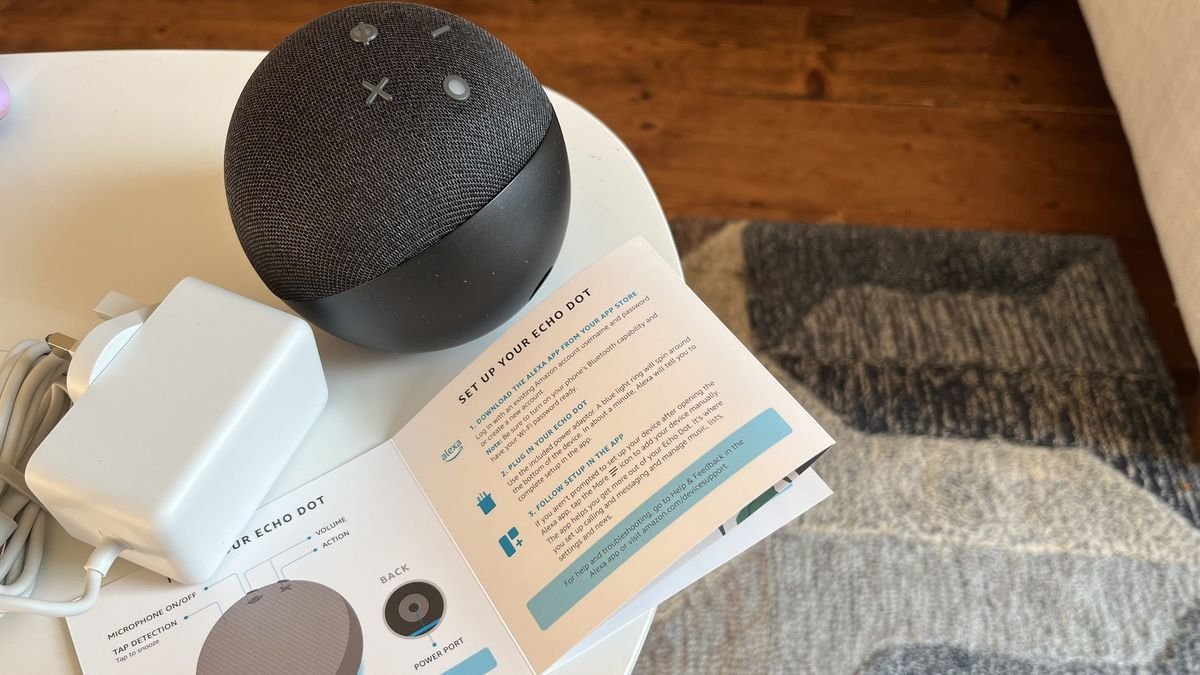
Data Privacy and Security When Resetting Your Echo Dot: A Comprehensive Guide
So, you're considering resetting your Amazon Echo Dot. Perhaps it's a trusty companion experiencing a few glitches, a device you're planning to sell, or you're simply moving and need to reconfigure its network. Whatever the reason, understanding the data privacy and security considerations when resetting your Echo Dot is paramount. It’s not just about getting the device working again; it’s about protecting your personal information. Think of it as spring cleaning for your digital life.
Before you dive in, let's cut through the noise. This guide will walk you through everything you need to know, ensuring your data remains yours and your Echo Dot performs optimally.
At a Glance: Your Reset Roadmap
- Soft Reset (Power Cycle): Resolves minor issues without deleting data. Your settings, connections, and personal info remain intact.
- Hard Reset (Factory Reset): Crucial for data privacy. It wipes ALL personal data, settings, and connections, returning the Echo Dot to its original, out-of-the-box state.
- Why Reset? For troubleshooting, selling/recycling, or starting fresh with a new Wi-Fi network.
- Back Up First: Always back up routines and settings via the Alexa app before a hard reset.
- Data Deletion: A hard reset permanently deletes voice recordings, Wi-Fi passwords, alarms, smart home connections, and more from the device.
Why Reset Your Echo Dot? More Than Just a Fix
Before we get into the nitty-gritty of how to reset, let's understand the why. Resetting isn't a one-size-fits-all solution, but it addresses a variety of common scenarios:
- Troubleshooting Persistent Issues: From unresponsive commands to connectivity woes, a reset often resolves over 83% of common device issues. If your Echo Dot is freezing or just plain acting buggy, it might be time for a fresh start. For more general advice, you might want to troubleshoot common Echo Dot glitches before resorting to a full reset.
- Selling or Gifting Your Device: This is where data privacy becomes critical. You absolutely do not want your next-door neighbor or a stranger on an online marketplace having access to your voice recordings, saved Wi-Fi networks, or smart home device connections. A factory reset ensures your personal data is scrubbed clean.
- Moving or Changing Wi-Fi Networks: While you can often update Wi-Fi settings without a full reset, sometimes a clean slate simplifies the process, especially with complex network changes.
- Starting Fresh: Maybe you want to reconfigure your smart home setup from scratch, or simply feel like a periodic cleanse for optimal performance.
Preparing for a Seamless Reset: Your Pre-Flight Checklist
A little preparation goes a long way. Before you press any buttons or dive into the Alexa app, take these crucial steps:
- Back Up Customized Settings and Routines: The Alexa app (or website) is your command center. Use it to save any unique routines, alarms, or smart home settings you've created. While a hard reset won't delete your account, it will erase these personalized configurations from the device itself. Recreating them from scratch can be a chore. Learn more about managing your Alexa app settings to get this done efficiently.
- Disconnect External Devices: Unplug any external speakers or smart home hubs physically connected to your Echo Dot.
- Check for Software Updates: Sometimes, a simple software update can resolve issues without needing a full reset. Head to the Alexa app, select your device, and look for update options.
- Unregister the Device (If Multiple): If you have several Echo Dots, go into your Amazon account settings (via the app or website) and specifically unregister the device you intend to reset. This prevents any confusion and ensures a clean break.
- Gather Wi-Fi Credentials: After a hard reset, you'll need to reconnect your Echo Dot to your Wi-Fi network. Have your network name (SSID) and password handy.
Two Paths to Reset: Soft vs. Hard (And What It Means for Your Data)
Understanding the distinction between these two types of resets is fundamental for both troubleshooting and data privacy.
1. Soft Reset: The Gentle Nudge (No Data Loss)
A soft reset is essentially a power cycle. It’s like turning your computer off and on again when it's acting sluggish. This method is fantastic for resolving minor glitches, temporary freezes, or responsiveness issues without touching your personalized data. Crucially, a soft reset does not delete any of your personal information, settings, or connected devices.
How to Perform a Soft Reset:
- Locate the power button on the bottom of your Echo Dot (if available).
- Press and hold it for approximately 20 seconds.
- The light ring will turn off, then back on, and finally blue.
- Release the button. Your device will restart and attempt to reconnect.
2. Hard Reset: The Full Data Wipe (Factory Defaults)
This is the big one. A hard reset, also known as a factory reset, is the ultimate solution for severe issues and, more importantly, your strongest tool for data privacy. It completely restores your Echo Dot to its original factory state, as if you just pulled it out of the box.
What a Hard Reset Wipes (And Why It Matters for Privacy):
When you perform a hard reset, your Echo Dot goes through a thorough digital cleansing. This includes:
- All Personalized Settings: Your preferred volume, notification sounds, time zone, and language are gone.
- Wi-Fi Profiles: All saved Wi-Fi network names and passwords are permanently deleted.
- Bluetooth Paired Devices: Any devices like speakers or headphones you've connected via Bluetooth are unlinked.
- Private User Data: This is the core of the privacy consideration. A hard reset permanently deletes your:
- Voice Recordings: All your interactions with Alexa, stored locally on the device, are removed.
- Saved Music: Any downloaded or cached music will be cleared.
- Alarms, Timers, To-Do Lists, Reminders: These personal organizational tools are wiped.
- Smart Home Automations & Device References: Connections to your smart lights, thermostats, cameras, and other smart home gadgets are severed.
- Skill Configurations: While your Alexa account won't be deleted, some skills you've enabled might need reconfiguring post-reset.
The permanence of this data deletion is paramount, especially if you're selling, recycling, or giving away your Echo Dot. It ensures that no lingering personal information can be accessed by the next owner. This commitment to data security is why periodic resets are recommended.
How to Perform a Hard Reset: Step-by-Step
There are several ways to execute a hard reset, depending on your Echo Dot generation and personal preference. Choose the method that best suits your situation.
Method 1: Via the Alexa App (Most Generations)
This is often the easiest and most convenient method, especially for newer models (Gen 3, 4 & 5).
- Open the Amazon Alexa app on your smartphone or tablet.
- Tap the "Devices" icon at the bottom right.
- Select "Echo & Alexa" from the list.
- Choose the specific Echo Dot you wish to reset.
- Scroll down to "Device Settings" (you might need to scroll quite a bit).
- Tap on "Reset to Factory Defaults" (or similar wording like "Factory Reset").
- Confirm your decision when prompted. The device will then begin its reset process, which can take a few minutes.
Method 2: Via Device Buttons (Generation-Specific)
If your Echo Dot is unresponsive or you don't have the Alexa app handy, physical buttons are your go-to.
- Echo Dot Gen 2: This generation has a tiny, recessed button.
- Locate the microscopic recessed reset button on the bottom ridge of the device.
- Use a paperclip or a similar small, pointed object to depress this button.
- Hold it down for 5+ seconds. The LED light ring will turn orange, then go dark.
- Release the button and wait for the blue light ring, indicating it's ready for setup.
- Echo Dot Gen 3:
- Simultaneously press and hold the Action button (the one with the dot) and the Volume Down button for about 20 seconds.
- The light ring will turn orange, then blue, then off, and finally back on. Release the buttons.
- Echo Dot Gen 4 & 5 (The Sphere Models): These models have a prominent Action button.
- Press and hold the physical Action Button (the circle with the dot) on top of the device for 25+ seconds.
- The light ring will turn orange, then fade to black, and finally display a glowing blue ring. Release the button.
Method 3: Via Remote Control (If Paired)
If you happen to have an Echo Dot remote control paired with your device (less common these days but still an option):
- On the remote, press and hold the Microphone (Mute) button and the Volume Down button simultaneously.
- Keep holding them until the Echo Dot's light ring turns orange.
- Release the buttons and let the reset sequence complete.
Method 4: The Power Adapter Cycle (Last Resort/Simple Restart)
While primarily a robust restart method, a thorough power cycle can sometimes trigger a soft reset behavior or resolve deep-seated power issues. It's not a true "hard reset" in the sense of data wiping, but it's a fundamental troubleshooting step.
- Unplug the power adapter from the electrical outlet.
- Disconnect the power adapter from the Echo Dot itself.
- Wait for 30-60 seconds (this is crucial for discharging internal capacitors and ensuring a full power cycle).
- Reconnect the adapter to the Echo Dot, then plug it back into the electrical outlet.
- Wait for the device to power on and boot up. If issues persist, you'll need one of the hard reset methods above.
Post-Reset: What to Expect and How to Reconnect
After a hard reset, your Echo Dot will be in "setup mode," indicated by a pulsing orange light ring. This means it's ready to be reconfigured.
- Download/Open the Alexa App: You'll need the app to set it up again.
- Add a New Device: Follow the on-screen prompts to add your Echo Dot as a "new device."
- Connect to Wi-Fi: Enter your Wi-Fi network name and password.
- Re-link Services and Skills: You'll need to reconnect your music services, enable skills, and recreate your smart home connections.
It's common for users to encounter minor hiccups post-reset. If your device remains unresponsive (43% of cases), experiences failed Wi-Fi connectivity (38%), or Bluetooth isn't linking (31%), first check your electrical connections and ensure your Wi-Fi router is working correctly. Sometimes, simply restarting your router or ensuring your Alexa app is updated can resolve these issues. If problems persist, Amazon customer support is your next stop.
Long-Term Security and Performance: The Value of Periodic Resets
Think of your Echo Dot like any other piece of technology: it benefits from a refresh. Periodically factory resetting your Echo Dot, perhaps every 6-12 months, offers several benefits:
- Clears Temporary Files and Fragmented Data: Over time, devices accumulate cached data and fragmented files that can slow them down. A reset cleans this up, restoring "cleaner storage."
- Ensures Clean Firmware and Patch Installations: This ensures that your device is running on the freshest, most secure software, free from any lingering issues from previous updates. This contributes to best practices for data security on your smart devices.
- Maintains Speed and Responsiveness: A decluttered device simply performs better. You'll notice faster responses and smoother operation.
- Guaranteed Data Privacy: Most importantly, a periodic hard reset ensures that any personal data that might have accumulated (even if you think you're deleting it through other means) is completely wiped from the device. This provides peace of mind, especially as your interactions with Alexa grow over time.
This complete deletion of all personal data upon reset is vital for data security. It acts as a final safeguard, preventing any potential privacy leaks, especially if you ever decide to sell or recycle the device. For insights into maximizing the resale value of your old electronics while ensuring data integrity, a thorough reset is non-negotiable.
Frequently Asked Questions About Echo Dot Resets
Q: Does resetting my Echo Dot delete my Amazon account?
A: No, resetting your Echo Dot to factory defaults only impacts the specific device. Your Amazon account, Alexa profile, and any associated purchases or subscriptions remain intact. You'll simply need to set up the Echo Dot again as a new device associated with your existing account.
Q: Will resetting my Echo Dot fix Wi-Fi issues?
A: Often, yes. A hard reset completely wipes all saved Wi-Fi networks and profiles, allowing you to establish a fresh connection from scratch. This can resolve persistent connectivity problems that aren't related to your router or internet service provider.
Q: Is a soft reset enough for selling my Echo Dot?
A: Absolutely not. A soft reset (power cycle) does not delete any personal data. You must perform a hard reset (factory reset) if you intend to sell, gift, or recycle your Echo Dot to ensure all your personal information is permanently wiped from the device. This is a critical step for securing your smart home devices before they change hands.
Q: How do I know if my Echo Dot has been successfully reset?
A: After a hard reset, your Echo Dot will display a pulsing orange light ring, indicating it is in setup mode and ready to be reconfigured through the Alexa app. If it reboots and connects to your old Wi-Fi or retains settings, the reset was not successful, and you should try again.
Q: Can I retrieve data after a hard reset?
A: No. A hard reset of your Echo Dot permanently deletes all personal data from the device. There is no recovery process for this information once it's been wiped. This is why backing up routines and settings beforehand is so important.
Your Privacy, Your Control: The Final Word
Resetting your Echo Dot, particularly a hard factory reset, is more than just a troubleshooting step; it's a powerful tool for safeguarding your personal data and ensuring your device operates at its best. By understanding the different types of resets, knowing how to execute them, and appreciating the critical role they play in data privacy, you empower yourself to manage your smart home devices confidently.
So, whether you're battling a stubborn glitch or preparing your Echo Dot for its next adventure, remember the steps outlined here. Take control, protect your data, and reset your Echo Dot with confidence.