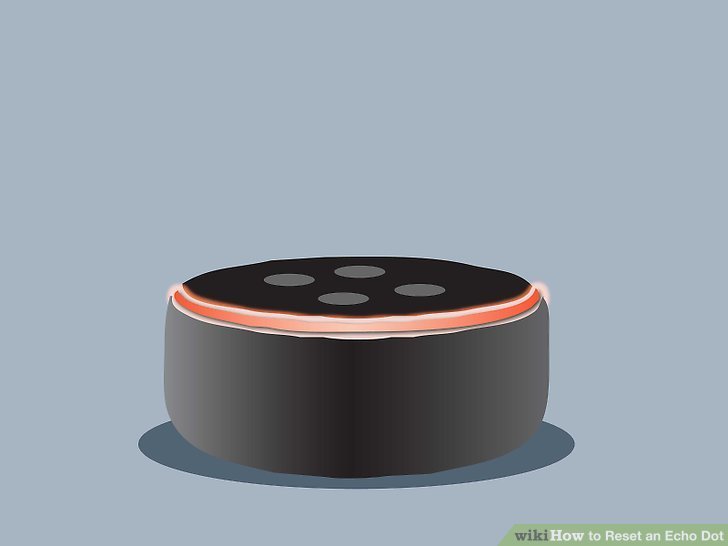
Your Amazon Echo Dot is a fantastic smart home companion, but like any piece of technology, it can sometimes benefit from a complete refresh. Whether you're troubleshooting persistent issues, preparing to sell or gift your device, or simply want to clear out old settings and start anew, a factory reset can be the ultimate solution. This guide will walk you through everything you need to know about giving your Echo Dot a sparkling clean slate, connecting you to deeper insights at every step.
Why Reset Your Echo Dot? Giving Your Device a New Lease on Life
A factory reset isn't a daily task, but it's an incredibly powerful tool when necessary. You might consider resetting your Echo Dot if it's become unresponsive, struggling with Wi-Fi connectivity, or experiencing software glitches that a simple restart can't fix. It's also essential if you're passing the device on to a new owner, ensuring all your personal data is completely erased. For a deeper dive into the specific scenarios where a reset is your best bet, explore our comprehensive guide on Common Reasons and Scenarios for needing to take this step.
Deregistering vs. Factory Reset: Knowing the Critical Difference
Before you grab a paperclip, it's crucial to understand the difference between deregistering your Echo Dot and performing a full factory reset. Deregistering removes the device from your Amazon account and unlinks your personal information, which is great if you're just separating it from your profile, but it doesn't wipe the device's Wi-Fi settings or other stored data. A factory reset, on the other hand, is a complete erasure, returning your Echo Dot to its original, out-of-the-box state, including all network configurations. For a clearer picture of these distinctions and when to use each, check out our guide on Echo Dot reset types explained.
How to Deregister Your Echo Dot
While not a full reset, deregistering is often the first step when preparing to gift or sell your device, as it allows you to remove it remotely from your account.
Using the Alexa App:
- Open the Alexa app on your smartphone or tablet.
- Tap the
☰(menu) button. - Select "Settings," then "Device Settings."
- Choose your specific Echo Dot from the list.
- Scroll down and tap "Deregister," then confirm your choice.
Using the Amazon Website: - Go to
amazon.com/mycdin your web browser. - Sign in to your Amazon account.
- Navigate to "Your Content and Devices," then select the "Devices" tab.
- Locate your Echo Dot, click the "..." (more actions) button, and select "Deregister."
- Confirm when prompted.
How to Factory Reset Your Echo Dot (Generation-Specific Steps)
A factory reset requires physical access to your Echo Dot, as it involves pressing specific buttons on the device itself. The exact method varies slightly depending on which generation of Echo Dot you own. To ensure you follow the correct procedure for your model, our detailed guide on How to factory reset Echo Dot provides comprehensive, visual instructions.
1st Generation Echo Dot
- Locate the small pinhole reset button on the bottom of the device.
- Using a straightened paperclip or a SIM ejector tool, press and hold this button firmly for approximately 20 seconds.
- The light ring will turn orange, then blue. Keep holding.
- Once the light ring turns off, then back on, and finally illuminates orange, release the button. Your Echo Dot is now in setup mode.
2nd Generation Echo Dot
- Press and hold the "Microphone off" button (the one with a crossed-out microphone icon) and the "Volume down" button simultaneously.
- Continue holding both buttons for about 20 seconds.
- The light ring will turn orange, then blue. Keep holding until it turns off.
- When the light ring turns back on and then orange, indicating setup mode, you can release the buttons.
3rd, 4th, and 5th Generation Echo Dot
- Press and hold the "Volume Down" button and the "Microphone off" button (the one with the crossed-out microphone icon) simultaneously.
- Hold both buttons for approximately 20 seconds.
- The light ring will turn orange, then turn off.
- Once it lights up orange again, signaling setup mode, you can release the buttons.
Voice Command Reset (3rd, 4th, and 5th Generation - if responsive)
If your Echo Dot is still responsive to voice commands and you want a quicker reset, you can try this method. However, if the device is unresponsive due to software issues, you'll need to use the button method above.
- Simply say, "Alexa, reset to factory defaults."
- Alexa will ask for confirmation; respond with "Yes."
What Happens After a Reset? Reconnecting Your Echo Dot
Once your Echo Dot completes its factory reset, all your personal data, linked accounts, Wi-Fi passwords, and installed skills will be erased. It will be just like the day you unboxed it. If you plan to continue using the device, you'll need to set it up again as new. Our guide to Resetting your Echo Dot explained details this crucial next step, ensuring a smooth transition back to full functionality.
Post-Reset Setup Steps:
- Open the Alexa App: On your smartphone or tablet, open the Alexa app and sign in to your Amazon account if prompted.
- Add a New Device: Tap the
☰(menu) button, then "Add Device." Select "Amazon Echo," then "Echo Dot." - Put Echo Dot in Setup Mode: If not already in setup mode (indicated by an orange light ring), press and hold the "Action" button (the one with the single dot) on your Echo Dot until the light ring turns orange.
- Connect to Wi-Fi: The Alexa app will guide you through connecting your Echo Dot to your Wi-Fi network. Select your network and enter the password if required.
- Assign to Account: Follow the prompts to assign the Echo Dot to your Amazon account and personalize its settings.
Troubleshooting Common Reset and Setup Issues
Sometimes, even after attempting a reset, you might encounter issues. The light ring might not turn orange, or your device might struggle to reconnect to Wi-Fi. Before opting for a full factory reset, consider simpler solutions like restarting your device by unplugging it for 30 seconds and plugging it back in. This often resolves minor glitches without erasing all your data. For specific solutions to these and other common problems, including when to contact Amazon support, refer to our pillar on Fix Echo Dot without reset.
Quick Troubleshooting Tips:
- Light Ring Not Turning Orange: Ensure you are holding the correct buttons for the full 20 seconds and pressing them firmly.
- Difficulty Connecting to Wi-Fi: Double-check your Wi-Fi password, ensure your router is working, and try moving the Echo Dot closer to the router.
- Unresponsive Device: Try unplugging the Echo Dot for at least 30 seconds, then plugging it back in. If it remains unresponsive, Amazon support may be needed.
Important Considerations Before You Begin
While a factory reset can be incredibly effective, it's not a decision to take lightly. The reset process itself usually takes only a minute or two, but the subsequent setup and re-configuration of skills and preferences can take an additional 5-10 minutes. Remember, resetting one Echo Dot will not affect any other Echo devices connected to your network, nor will it void your device's warranty. It's a precise fix for a specific device, providing a clean slate when you truly need one.
By understanding the process and knowing when to use it, you're empowered to keep your Echo Dot running smoothly and securely.