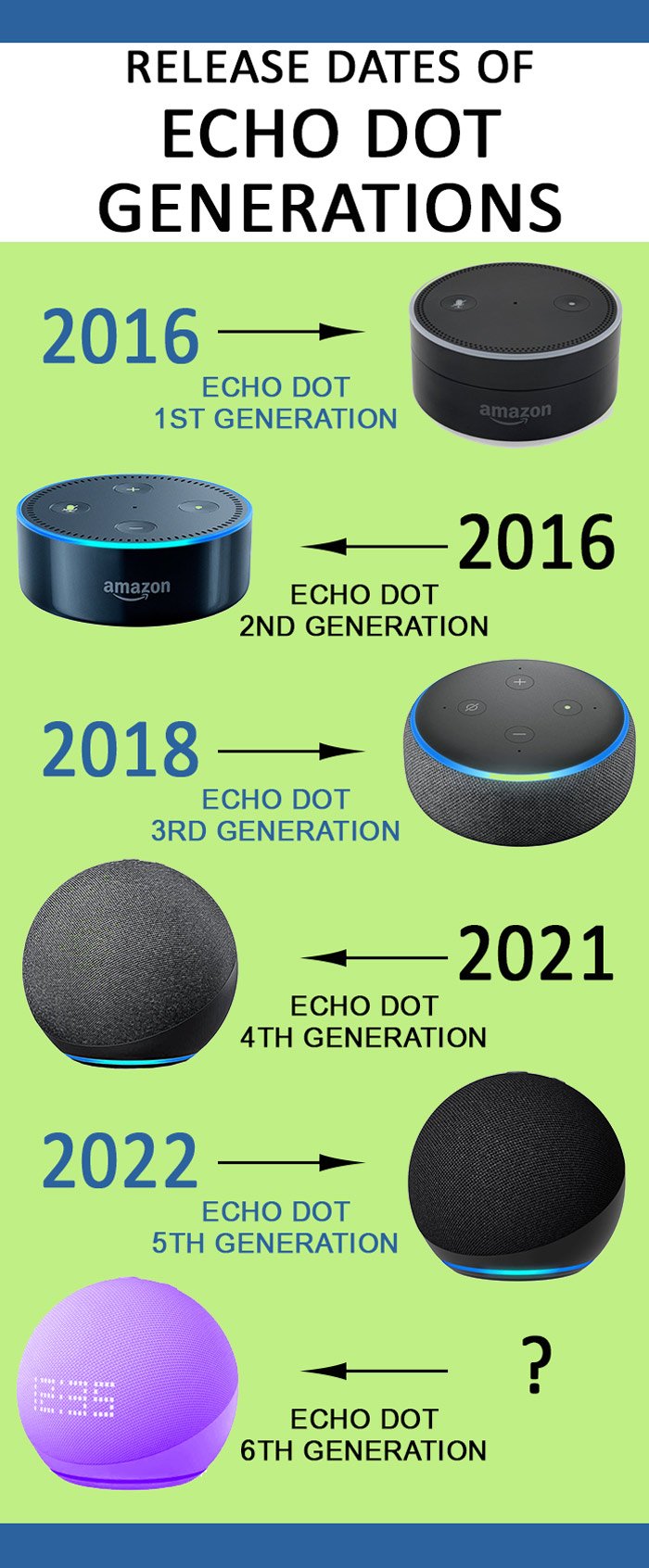
Is your Echo Dot acting a little… erratic? Maybe it’s ignoring your commands, disconnecting from Wi-Fi, or simply not performing like it used to. Before you resign yourself to buying a new one, a factory reset might be exactly what you need. Understanding the Specific Reset Instructions for Different Echo Dot Generations is key, as the process isn't one-size-fits-all. It’s like a fresh start for your smart speaker, wiping away old data and glitches to bring it back to its original, pristine state.
This guide will walk you through the precise steps for each Echo Dot model, ensuring you can troubleshoot, prepare for resale, or simply regain control of your smart home hub with confidence.
At a Glance: Your Echo Dot Reset Cheat Sheet
- When to Reset: For persistent issues, bizarre behaviors, or before selling/gifting your device.
- What it Does: Wipes all personal data, settings, and restores factory defaults.
- Crucial First Step: Always try a simple power cycle (unplug for 30 seconds) before a factory reset.
- Post-Reset: Your Echo Dot will enter setup mode (often an orange light ring) and needs to be reconnected to your Amazon account and Wi-Fi.
- Generation Matters: Reset methods vary significantly between Echo Dot generations. Identify your model first!
Why Hit the Reset Button? Understanding When and Why
A factory reset, sometimes called a hard reset, is a powerful tool in your smart home troubleshooting arsenal. But it’s not always the first step. Think of it as hitting the "nuclear option" – it's incredibly effective, but it means starting from scratch.
You'll typically reach for a factory reset in a few key scenarios:
- Solving Persistent Glitches: If your Echo Dot is exhibiting strange behaviors – constantly dropping Wi-Fi, failing to respond to commands, or generally acting up despite other troubleshooting efforts – a full reset can often resolve underlying software conflicts or corrupted settings.
- Preparing for Resale or Gifting: This is perhaps the most important reason. A factory reset completely wipes all your personal data, linked accounts, smart home device connections, and voice history from the device. It's an essential privacy step to ensure your information doesn't go along with your old Dot to its new owner.
- Troubleshooting Stubborn Connectivity Issues: While a Wi-Fi check and power cycle are usually enough, if your Echo Dot absolutely refuses to connect or stay connected to your network, a fresh start might be necessary.
Before You Reset: The Crucial First Steps
Before diving into the generation-specific instructions, let's cover some non-destructive troubleshooting. These simple steps often fix common issues without erasing all your data, saving you time and effort.
The Power Cycle: Your First Line of Defense
This is the golden rule of tech support for a reason. Many temporary glitches are just that: temporary.
- Unplug: Disconnect your Echo device from its power supply.
- Wait: Leave it unplugged for at least 30 seconds. This allows residual power to drain and internal components to fully reset.
- Reconnect: Plug it back in.
- Observe: Wait for the device to boot up and see if the issue is resolved.
Verify Your Wi-Fi Connection
Your Echo Dot is essentially useless without a stable internet connection.
- Check Your Router: Ensure your Wi-Fi router is on and broadcasting a signal. Try restarting your router if other devices are also having trouble.
- Signal Strength: Is your Echo Dot too far from your router? Obstacles like walls and other electronics can interfere with the signal. Consider moving it closer or investing in a Wi-Fi extender.
- Network Name/Password: Double-check that your Wi-Fi network name (SSID) and password haven't changed.
What About a "Soft Reset"?
Some Echo devices offer a "soft reset" option. This typically resets certain settings without disconnecting all your smart home device connections or wiping personal data completely. For instance, on an Echo Plus 2nd generation, pressing the action button for 20 seconds performs a type of soft reset. Devices with a screen might offer a "Reset to factory settings but retain Smart Home device connections" option.
However, for a truly clean slate – especially when selling or dealing with severe issues – a full factory reset, as detailed below, is the way to go.
Your Reset Roadmap: Specific Instructions for Each Echo Dot Generation
Now, let's get down to the precise steps. The method for resetting your Echo Dot hinges entirely on which generation you own. Don't worry if you're not sure; generally, the newer generations (3rd, 4th, 5th) share a similar button-press method, while older ones require different approaches.
Echo Dot 3rd, 4th, or 5th Generation: The "Action Button" Method
These are the most common recent models, characterized by their fabric finish and distinct sound profiles. The reset process is straightforward:
- Power On: Connect your Echo Dot to power and wait for it to fully boot up. The light ring might be dark, or flashing orange, red, or purple.
- Locate the Action Button: Find the button with a small dot on it. This is typically located on the top of the device.
- Press and Hold: Press and hold the Action button firmly.
- For most scenarios, holding for 5 to 10 seconds will initiate the reset.
- In some cases, especially if it's being particularly stubborn, you might need to hold it for up to 25 seconds.
- Observe the Light Ring: Keep an eye on the light ring. It will eventually turn orange, and the speaker will announce, "Entering setup mode." Alternatively, the light ring might switch off and on again before turning orange.
- Release: Once you see the orange light or hear the announcement, you can release the button. Your Echo Dot is now reset and ready for a new setup.
Echo Dot 2nd Generation: The "Mute and Volume Down" Combo
The 2nd Gen Echo Dot is a popular predecessor, often recognized by its sleek plastic finish and the prominent light ring. Its reset method is unique.
- Power On: Plug your Echo Dot into its USB power adapter and wait for it to boot. The light ring will glow blue briefly, then go dark.
- Simultaneous Press: Once the light ring goes black, simultaneously press and hold both the Mic Mute button (the button with a crossed-out microphone icon) and the Volume Down button (the button with a minus sign).
- Wait for the Light: Hold both buttons. After a brief pause, the light ring will go black again, then glow orange.
- Release: The moment you see the orange light, you can release the buttons. This indicates the reset is complete, and your device is in setup mode.
Echo Dot 1st Generation: The "Paper Clip" Reset
The original Echo Dot looks a bit like a hockey puck and often requires a small tool for a full reset.
- Power On: Connect your Echo Dot to its USB power supply and wait for it to boot up. The light ring will light up blue, then go off or dark.
- Locate the Reset Hole: Once the light ring goes black, turn the device over. You'll find a small hole on the underside.
- Insert and Press: Use a paper clip or a similar thin, pointed object to press and hold the Reset button inside this hole.
- Hold and Observe: Press and hold for 5 to 10 seconds. The light ring will turn orange, then blue.
- Release: Release the paper clip when you see the light ring turn orange, then blue. After another brief pause, it will turn black again, then orange. This final orange light signifies it's in setup mode and ready for a new configuration.
Beyond the Dot: Resetting Other Echo Devices
While our focus is on the Echo Dot, you might have other Alexa-enabled devices. The reset process can vary wildly. Here's a quick overview for some common Echo devices:
- Echo Plus 2nd Generation: Press the "Volume up" and "Mute" buttons simultaneously for approximately 20 seconds.
- Echo Plus 1st Generation: Similar to the 1st Gen Dot, use a paper clip to press the reset button in the hole on the underside for at least eight seconds.
- Echo devices with a screen (e.g., Echo Show, Echo Spot): These are generally the easiest. Simply say, "Alexa, go to Settings," then navigate to "Device Options" and select "Reset to factory settings."
- Echo Sub & Echo Input: For these devices, press and hold the Action button for about 25 seconds until the light ring changes.
Remember, if you're exploring how to reset your Echo Dot for troubleshooting, you might also find it helpful to understand How to reset your Echo Dot in a broader context, covering more general best practices.
What Happens After the Reset? Getting Your Dot Back Online
After successfully performing a factory reset, your Echo Dot isn't quite ready to resume its duties. It's essentially a blank slate, waiting for you to tell it what to do.
- Setup Mode Indication: You'll notice the light ring glowing orange. This is Alexa's way of telling you, "I'm ready for setup!"
- New Setup Required: Just like when you first unboxed it, you'll need to run through the initial setup procedure.
- Reconnect to Your Account: You'll need to link the device back to your Amazon account using the Alexa app on your smartphone or tablet.
- Re-establish Wi-Fi: The setup process will guide you through connecting your Echo Dot to your home Wi-Fi network.
- Reconfigure Settings: Any custom settings, alarms, smart home connections, or preferred services (like Spotify or Pandora) will need to be reconfigured.
This "fresh start" can be a bit of a chore, but it's often the most effective way to eliminate persistent software issues and ensures your device is truly clear of old data.
Troubleshooting Common Reset Hurdles
Even with clear instructions, sometimes things don't go exactly as planned. Here are a few common issues you might encounter during the reset process and how to tackle them:
- The Light Ring Isn't Responding:
- Are you holding it long enough? For 3rd-5th Gen Dots, it can feel like a long time (up to 25 seconds). Be patient.
- Is the device powered on? Double-check the power connection. If the device isn't fully booted, the reset won't work.
- Are you pressing the correct buttons? Refer back to the specific instructions for your generation. It's easy to mix up the Action button with the Volume buttons, especially on older models.
- Accidental Reset: If you accidentally reset your Echo Dot, don't panic. Simply go through the setup process again using the Alexa app. All your Amazon account data is safe in the cloud; you'll just need to re-link the device.
- Still Having Issues Post-Reset: If your Echo Dot still misbehaves after a factory reset, it might indicate a hardware problem rather than a software glitch.
- Contact Amazon Support: This is your next best step. They can diagnose potential hardware faults or offer further advanced troubleshooting.
- Check Warranty: If your device is still under warranty, a hardware issue might be covered for replacement.
Keeping Your Echo Dot Running Smoothly: Preventative Tips
While resets are useful for emergencies, proactive care can often prevent the need for them.
- Ensure Good Wi-Fi Signal: A stable, strong Wi-Fi connection is paramount for your Echo Dot's performance. Consider your router's placement and potential interference.
- Regular Software Updates: Alexa devices automatically receive software updates from Amazon. Ensure your device has enough power and an internet connection to download and install these. Updates often fix bugs and improve performance.
- Optimal Placement: Avoid placing your Echo Dot in enclosed spaces, near heat sources, or where it might get dusty. Good airflow and a stable environment contribute to longevity.
- Responsible Smart Home Management: If you connect many smart home devices, occasionally review your routines and linked services. Too many complex interactions or conflicting commands can sometimes lead to software slowdowns.
Empowering Your Smart Home Experience
Understanding how to perform Specific Reset Instructions for Different Echo Dot Generations isn't just about fixing problems; it's about empowering you to maintain control over your smart home ecosystem. Whether you're troubleshooting a stubborn glitch, ensuring your privacy before a sale, or simply giving your device a clean slate, you now have the knowledge to confidently handle your Echo Dot.
By knowing these distinct methods, you can quickly get your Echo Dot back on track, ensuring it remains the helpful, responsive assistant you rely on every day. With a little care and the right instructions, your Echo Dot will continue to enhance your home life, bringing convenience and connectivity right to your voice.