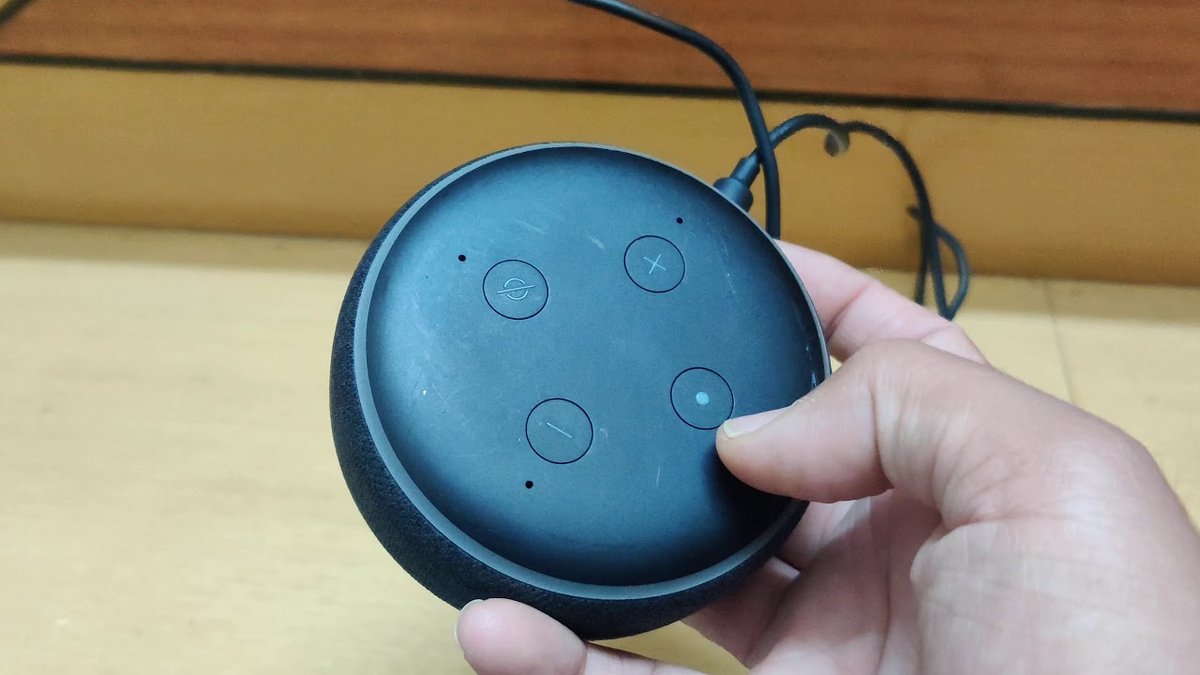
Ever found yourself staring at your Echo Dot, wishing it would just… work? Or perhaps you’re ready to pass it on, but the thought of your personalized data still lingering inside makes you pause. Whatever your reason, a clean slate often solves a multitude of tech woes. This Step-by-Step Guide to Factory Resetting Your Echo Dot will walk you through the process, ensuring you can tackle any issue, prep your device for a new home, or simply start fresh with confidence.
Think of it as hitting the "undo" button for your smart speaker. When you factory reset your Echo Dot, you're not just clearing its memory; you're restoring it to its original, out-of-the-box state. This means all your personalized settings, saved preferences, activated skills, and custom routines will be completely erased. The device forgets its Wi-Fi network, your Amazon account, and any data it collected while serving you. It's a powerful tool, whether you're troubleshooting a persistent glitch, preparing to sell or gift your device, or just craving that "new device" feeling again.
At a Glance: Resetting Your Echo Dot
- Why Reset? Troubleshoot issues, sell/gift device securely, or get a fresh start.
- What it Does: Erases all personal data, settings, skills, and routines. Restores default factory state.
- Preparation: Ensure your Echo Dot is plugged in and powered on.
- Key Step: Locate the specific reset button for your generation of Echo Dot (it varies!).
- Visual Cues: Watch the light ring for specific color changes (orange, then blue for newer models) to confirm success.
- Post-Reset: Your Dot will need a complete re-setup, just like when it was new.
- No Alexa App Needed: The entire process is performed directly on the device.
Why Press the Reset Button? Unpacking the Benefits of a Clean Slate
Before we dive into the "how," let's briefly touch on the "why." Understanding the scenarios where a factory reset is your best bet can save you headaches down the road. It’s more than just a last resort; it’s a vital tool in your smart home troubleshooting kit.
Troubleshooting Persistent Problems: Is your Echo Dot constantly dropping its Wi-Fi connection? Is Alexa struggling to understand commands it once flawlessly executed? Or perhaps a specific skill isn't working right, even after you've tried disabling and re-enabling it. Sometimes, software glitches can accumulate over time, leading to frustrating performance issues. A factory reset can clear out these underlying software conflicts, often resolving problems that regular reboots can't touch. It's like giving your device a complete system refresh.
Preparing for a New Owner: If you're selling your Echo Dot, giving it to a friend, or donating it, a factory reset is non-negotiable. Your Echo Dot stores a surprising amount of personal information, from your Amazon login details to your connected smart home devices and even snippets of your voice interactions (though these are anonymized, the connection to your account is what matters). Performing a factory reset ensures that all your data is wiped clean, protecting your privacy and giving the new owner a truly fresh start without access to your Amazon ecosystem. This step is crucial for digital security and peace of mind, much like wiping a smartphone before resale. If you're looking for more general advice on managing your smart home devices, checking a guide like How to reset your Echo Dot can provide broader context.
Starting Over with Your Smart Home: Maybe your smart home setup has become a tangled mess of skills, routines, and connected devices you no longer use. Sometimes, simplifying means starting from scratch. A factory reset allows you to rebuild your Echo Dot's configuration from the ground up, adding only the skills and integrations you truly need. This can lead to a more streamlined, efficient, and less cluttered smart home experience. It's an opportunity to re-evaluate how your smart devices work together and to optimize your daily routines.
Identifying Your Echo Dot: A Crucial First Step
The method for factory resetting an Echo Dot isn't one-size-fits-all. Amazon has released several generations, and the physical location and type of the reset mechanism have changed over time. Knowing which generation you own is absolutely critical to avoid frustration and ensure you're following the correct instructions.
Don't worry, identifying your Dot is usually quite straightforward by looking at its design and button layout.
First and Second Generation Echo Dot: The Original Pucks
These early models are characterized by a smooth, puck-like design. The key differentiator for resetting these generations is the absence of a clearly labeled "action" button for reset.
- Physical Appearance: Both generations share a similar compact, cylindrical shape. The First Generation is slightly taller with a more pronounced speaker grille, while the Second Generation is a bit flatter and wider.
- Button Layout: Both generations have four physical buttons on the top: Volume Up, Volume Down, Microphone Off, and the Action button (which calls Alexa, not the reset button).
- The Reset Mechanism: This is where it gets tricky – or rather, tiny! On the First and Second Generations, the actual reset button is a tiny, pinhole-sized opening located on the base or bottom edge of the device. You'll often need a paperclip, a SIM ejector tool, or a similar thin, pointed object to access it. This design choice was likely made to prevent accidental resets.
- How to Confirm: If your Echo Dot has four visible buttons on top and you can't find a dedicated, visible "action" button for reset, you almost certainly have a First or Second Generation device. Flip it over and look for that tiny pinhole.
Third Generation and Newer Echo Dot: The Fabric-Clad Evolution
Starting with the Third Generation, Amazon significantly redesigned the Echo Dot, giving it a softer, fabric-covered exterior and a much more accessible reset button. This design has largely carried over into subsequent generations like the Fourth and Fifth Generations.
- Physical Appearance: The Third Generation Echo Dot is wider and flatter than its predecessors, with a distinct fabric finish around its sides. The Fourth Generation (and the similar Fifth Generation) made another leap, featuring a spherical or globe-like design with the fabric covering the bottom half.
- Button Layout: These newer generations still have the four primary buttons (Volume Up, Volume Down, Microphone Off, and Action button) on the top.
- The Reset Mechanism: Here's the good news: on the Third Generation and Newer, the reset function is tied to a visible button. This is typically the "Action Button," often marked with a single dot or circle, located on the top surface alongside the other controls. You won't need a paperclip for these models. Just press it with your finger.
- How to Confirm: If your Echo Dot has a fabric exterior (either puck-shaped like the 3rd Gen or spherical like the 4th/5th Gen) and a clearly visible, pressable button on top that isn't volume or mute, that's your reset button.
Take a moment to carefully examine your Echo Dot now. Once you’re confident about its generation, you're ready to proceed with the correct reset instructions.
The Factory Reset Playbook: Step-by-Step for Every Echo Dot
Now that you've identified your specific Echo Dot generation, we can proceed with the precise instructions for initiating the factory reset. Remember, this process is done directly on the device itself and does not require the Alexa app.
Pre-Reset Checklist: Getting Ready
Regardless of your Dot's generation, a couple of universal steps apply before you begin:
- Power Up: Ensure your Echo Dot is plugged into a power outlet and is powered on. You'll need it fully operational to interact with its buttons and observe its light ring.
- Clear the Area: Make sure you have easy access to the device, especially its top and bottom. If you have a First or Second Generation Dot, grab a straightened paperclip or a similar thin, sturdy object.
Resetting Your First or Second Generation Echo Dot (Pinhole Method)
This method relies on finding that elusive, tiny button. Patience and a steady hand are your best friends here.
- Locate the Pinhole: Carefully turn your Echo Dot upside down or examine its bottom edge. You are looking for a small, recessed hole – often no larger than the tip of a pen. It might be near the power port or slightly off-center.
- Insert Your Tool: Gently insert the tip of your straightened paperclip (or similar tool) into this pinhole. You should feel a slight click as the button depresses.
- Press and Hold: Keep the paperclip pressed firmly into the pinhole button.
- Watch for the Light Ring: As you hold the button, observe the light ring on top of your Echo Dot.
- Initially, nothing might happen for a few seconds.
- After approximately 15 seconds of continuous holding, the light ring will turn orange, then flash blue, before returning to orange as it cycles through the setup process. This orange light indicates the device is entering setup mode after the reset.
- Release and Wait: Once the light ring turns orange and begins to flash, you can release the paperclip. The device will continue its internal reset process. The light ring may turn off briefly.
- Setup Mode Confirmation: The light ring will eventually turn solid orange again, indicating that the factory reset is complete, and your Echo Dot is now in setup mode, ready to be configured as a new device.
Troubleshooting Tip: If nothing happens after 15 seconds, ensure you're pressing the button firmly enough and that your paperclip is actually making contact with the internal switch. Sometimes a slight jiggle can help.
Resetting Your Third Generation or Newer Echo Dot (Action Button Method)
This is generally the easier method, as the button is clearly visible and designed for finger presses.
- Identify the Action Button: On the top surface of your Echo Dot, locate the button marked with a single dot (•). This is your Action button. It's typically positioned among the volume and microphone mute buttons.
- Press and Hold: Press and hold this Action button firmly with your finger.
- Watch for the Light Ring: Keep your eyes on the light ring as you hold the button. This is where the visual cues are different from older generations.
- For the first few seconds (up to 20 seconds), the light ring might remain as it was or simply glow white.
- After approximately 25 seconds of continuous holding, the light ring will first turn orange.
- Shortly after turning orange, it will then flash blue. This sequence (orange, then blue) is the key indicator for newer generations that the reset process has begun.
- Release and Wait: Once you see the light ring cycle from orange to blue, you can release the Action button. The device will continue its internal reset. The light ring may then turn off completely for a period.
- Setup Mode Confirmation: After a short time, the light ring will turn solid orange again. This signifies that your Echo Dot has been successfully factory reset and is now in setup mode, awaiting a fresh configuration.
Troubleshooting Tip: If the light ring doesn't turn orange then blue, ensure you're holding the button for the full 25 seconds. It can feel like a long time, but consistency is key. If you're encountering persistent issues, a more detailed resource on general troubleshooting, such as this comprehensive Echo Dot reset guide, might offer additional insights.
What Happens After the Flash? Your Post-Reset Actions
Congratulations! You've successfully performed a factory reset on your Echo Dot. But what now? Think of your device as a blank canvas, ready to be painted with your preferences once more.
A Brand New Device Experience
Immediately after the light ring turns solid orange (indicating setup mode), your Echo Dot is, for all intents and purposes, a brand new device. It no longer remembers anything about its previous life with you. This means:
- No Wi-Fi Connection: It has forgotten your home Wi-Fi network.
- No Amazon Account: It's no longer linked to your Amazon account.
- No Personalized Settings: All your custom alarms, timers, preferred music services, news flash settings, and voice recognition profiles (Voice ID) are gone.
- No Skills or Routines: Any Alexa skills you enabled, and any routines you created (like "Good Morning" or "Movie Night"), are no longer active on the device.
The Re-Setup Process: Bringing Your Dot Back to Life
To start using your Echo Dot again, you'll need to go through the initial setup process, exactly as you did when you first unboxed it. This always involves the Alexa app on your smartphone or tablet.
- Open the Alexa App: On your mobile device, launch the Amazon Alexa app.
- Add a Device: Tap the "Devices" icon at the bottom right. Then tap the "+" icon at the top right, and select "Add Device."
- Choose Your Device: Select "Amazon Echo," then "Echo Dot."
- Follow On-Screen Prompts: The app will guide you through connecting your Echo Dot to your Wi-Fi network. Since your Dot is already in setup mode (solid orange light), the app should easily detect it.
- Sign In to Your Amazon Account: You'll be prompted to sign in with your Amazon credentials to link the device to your account.
- Customize: Once connected, you can start re-enabling your favorite skills, setting up new routines, and adjusting preferences like your preferred language, time zone, and smart home device connections.
This re-setup process is crucial. Without it, your Echo Dot is essentially a very stylish, non-functional paperweight. It's your opportunity to be intentional about what you connect and enable.
Important Considerations & Troubleshooting Tips
While the factory reset process is generally straightforward, a few things are worth keeping in mind. And sometimes, even the best plans hit a snag. Here’s what to consider and what to do if things don’t go perfectly.
Privacy and Security: Beyond the Reset
We've touched on this, but it bears repeating: a factory reset is your frontline defense for privacy when giving away or selling your device. It ensures that your Amazon account is dissociated from the device and that no remnants of your personal data, voice profiles, or linked accounts (like Spotify or calendars) remain accessible. This isn't just about convenience; it's about safeguarding your digital identity. Think of it as digitally scrubbing your fingerprints off the device. For more detailed instructions, you might find specific steps in a guide titled how to reset your Echo Dot for privacy.
No Alexa App Required (for the Reset Itself)
It’s important to clarify: the reset itself is performed entirely on the physical device. You don't need to open the Alexa app during the button-pressing sequence. However, as discussed, you will need the Alexa app immediately after the reset to reconfigure the device and connect it to your network and account. This distinction is sometimes a point of confusion for users.
"It Didn't Work!": Common Troubleshooting Steps
If you've followed the steps for your specific Echo Dot generation and the light ring isn't responding as expected, don't panic. Here are some common reasons and solutions:
- Are You Holding it Long Enough? This is the most frequent culprit. The 15-second or 25-second hold can feel like an eternity. Try again, this time counting slowly and deliberately (e.g., "one Mississippi, two Mississippi..."). Ensure your finger or paperclip doesn't slip off the button during the count.
- Confirming the Right Button/Hole: Double-check that you are indeed pressing the correct button or inserting the paperclip into the right hole for your specific Echo Dot generation. Refer back to the "Identifying Your Echo Dot" section. It's easy to mistake the microphone mute button for the action button, for instance.
- Device is Powered On: Ensure your Echo Dot is definitely plugged in and has power. If the light ring isn't lighting up at all, it might not be receiving power. Try a different outlet or ensure the power adapter is securely connected.
- Try a Different Tool (for Gen 1/2): If your paperclip feels flimsy or isn't depressing the button effectively, try a sturdier alternative like a straightened safety pin or a fine-tipped pen that fits the hole.
- Restart Before Resetting: Sometimes, a simple power cycle (unplugging the Echo Dot for 30 seconds and plugging it back in) can clear minor issues that might be preventing the reset process from initiating correctly. Try this first, then attempt the factory reset again.
- Contact Amazon Customer Support: If you've tried all the above steps multiple times and your Echo Dot remains unresponsive or won't reset, it might indicate a more significant hardware issue. At this point, reaching out to Amazon's customer support is your best course of action. They can provide further diagnostics or discuss replacement options if the device is still under warranty.
FAQs: Addressing Your Burning Questions About Echo Dot Resets
We've covered the what, why, and how, but a few lingering questions often pop up. Let's tackle them head-on to give you complete confidence.
Q1: Will resetting my Echo Dot delete my Amazon account or other smart home devices?
No, absolutely not. A factory reset only affects the specific Echo Dot device itself. Your Amazon account, your Alexa profile, your saved preferences within the Alexa app, and the configurations of your other smart home devices (like smart lights or thermostats) remain untouched. When you re-setup the Echo Dot, you'll simply link it back to your existing Amazon account and smart home ecosystem.
Q2: Is a factory reset different from just unplugging and replugging the device?
Yes, they are fundamentally different. Unplugging and replugging your Echo Dot is a simple reboot. It clears temporary caches and restarts the software, which can fix minor glitches but doesn't erase any data or settings. A factory reset, on the other hand, performs a deep wipe of all user data and restores the device's firmware to its original state, essentially making it "like new." It's the difference between restarting your computer and reinstalling its operating system.
Q3: Do I need to de-register my Echo Dot from the Alexa app before resetting it?
While not strictly required for the physical reset process, it's a good practice, especially if you're giving the device away. Performing a factory reset on the device will de-register it from your Amazon account. However, you can also manually de-register it from within the Alexa app:
- Open the Alexa app.
- Go to Devices.
- Select Echo & Alexa, then choose your specific Echo Dot.
- Scroll down and tap Registered To.
- Tap Deregister.
This ensures that the device is officially removed from your account records, providing an extra layer of security. Doing both (app de-registration and physical factory reset) is the most thorough approach for complete data privacy.
Q4: How long does the entire reset process take?
The physical reset itself (pressing and holding the button) typically takes between 15 and 25 seconds, depending on the generation. After you release the button, the device might take another 1-2 minutes to complete its internal processes and settle into setup mode (indicated by the solid orange light). The subsequent re-setup process using the Alexa app usually takes about 5-10 minutes, depending on your Wi-Fi speed and how many custom settings you reconfigure. All in all, you can expect the entire cycle to take about 10-15 minutes.
Q5: Can I reset my Echo Dot using voice commands?
No, a factory reset is a security-sensitive action and cannot be initiated via voice commands or through the Alexa app. It must be performed physically on the device itself by pressing and holding the designated button for its generation. This prevents accidental resets and ensures that only someone with physical access to the device can erase its data.
Q6: What if my Echo Dot is completely unresponsive and I can't even get the lights to turn on?
If your Echo Dot is completely dead and shows no signs of life (no lights, no sound), a factory reset is likely not the solution. This usually indicates a power issue or a more serious hardware failure.
- Check Power: Ensure it's plugged into a working outlet and the power adapter is fully seated in both the wall and the device. Try a different outlet or adapter if you have one.
- Contact Support: If it remains completely unresponsive after confirming power, your best bet is to contact Amazon customer support. They can help diagnose hardware problems and discuss warranty options.
Maintaining Your Echo Dot's Performance: Beyond the Reset
While a factory reset is a powerful tool for troubleshooting and privacy, it's often a "big hammer" solution. Many minor issues can be prevented or resolved with simpler steps that don't erase all your data. Think of these as good housekeeping for your smart speaker.
Regular Reboots: Just like your phone or computer, your Echo Dot can benefit from a periodic reboot. Unplugging it for 30 seconds and plugging it back in can clear temporary glitches, refresh network connections, and improve overall responsiveness. Make this a habit every few weeks if you notice minor slowdowns.
Keep the Software Updated: Amazon regularly pushes software updates to Echo devices that include bug fixes, performance improvements, and new features. While updates typically happen automatically, ensuring your device is connected to Wi-Fi and powered on allows it to receive these vital improvements. You can check for pending updates in the Alexa app by going to Device Settings > [Your Echo Dot Name] > About.
Optimize Wi-Fi Connectivity: A strong, stable Wi-Fi connection is paramount for your Echo Dot's performance. If your device is struggling, consider:
- Proximity to Router: Move your Echo Dot closer to your Wi-Fi router.
- Interference: Keep it away from other electronics that might cause interference (microwaves, cordless phones).
- Router Reboot: Sometimes rebooting your Wi-Fi router itself can significantly improve network stability for all your devices, including your Echo Dot. For more troubleshooting steps related to connectivity, a comprehensive guide on common Echo Dot issues like how to reset your Echo Dot for network problems could be beneficial.
Manage Skills and Routines: Over time, you might accumulate many Alexa skills you rarely use, or routines that no longer serve a purpose. While these generally don't cripple your device, occasionally pruning unused skills and streamlining your routines in the Alexa app can make your experience feel cleaner and more efficient.
By incorporating these practices into your routine, you can often extend the life and maintain the optimal performance of your Echo Dot, making a full factory reset a less frequent necessity.
Empowering Your Smart Home Experience
A factory reset might seem like a daunting process, but with this step-by-step guide, you now possess the knowledge and confidence to execute it flawlessly. Whether you're breathing new life into a sluggish device, securing your personal data for a new owner, or simply craving a fresh start for your smart home, the power is in your hands.
Remember, technology is here to serve you. Knowing how to reset your Echo Dot isn't just a technical skill; it's an empowering one, ensuring your smart devices remain reliable, private, and perfectly tailored to your needs. Go forth and conquer your Echo Dot, making it work for you.