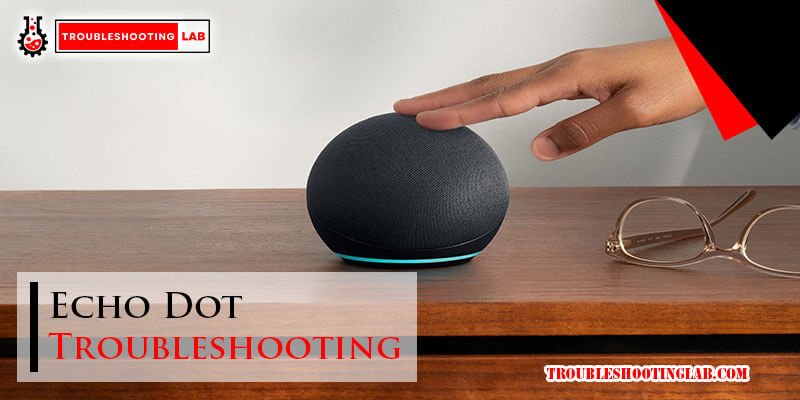
Your Echo Dot, the little puck of smart home magic, is usually the epitome of convenience. "Alexa, play my morning playlist." "Alexa, what's the weather?" Seamless. But what happens when that usually obedient voice assistant suddenly goes silent, lags, or simply refuses to cooperate? Before you dive into the drastic measure of a factory reset – erasing all your custom settings and preferences – know this: most common Echo Dot hiccups can be resolved with a few smart, non-invasive troubleshooting steps.
Think of your Echo Dot like a miniature computer. Sometimes it just needs a little nudge, a fresh start, or a clear path to do its job. This comprehensive guide is your go-to playbook for diagnosing and fixing those frustrating moments, empowering you to bring your smart companion back to life without losing your data.
At a Glance: Quick Fixes for Your Echo Dot
- Restart everything first: Your Echo Dot, your router, your modem. This solves a surprising number of problems.
- Check power: Make sure your Echo Dot is properly plugged in and getting juice.
- Verify Wi-Fi: Is your network up? Is your Echo Dot too far from the router?
- Inspect microphones: Ensure nothing's blocking the tiny holes where Alexa listens.
- Adjust volume: Sometimes it's as simple as the volume being too low or muted.
- Update software: Ensure your device has the latest firmware, often a silent fix for bugs.
- Avoid a full reset: Most issues can be fixed without wiping your data.
When Alexa Gets Mute: Diagnosing Common Echo Dot Problems
From the silent treatment to a sudden case of connection jitters, Echo Dot issues often fall into a few predictable categories. Understanding the root cause is the first step toward a quick, non-disruptive fix. We'll walk through the most common scenarios and give you the tools to tackle them head-on, keeping that factory reset button as a very last resort. If you ever do reach a point where a complete system overhaul feels necessary, you can always revisit our detailed guide on how to reset your Echo Dot.
The Ghost in the Machine: Tackling Wi-Fi Connectivity Issues
Perhaps the most frequent complaint with smart devices, Wi-Fi woes can leave your Echo Dot feeling less "smart" and more "paperweight." When your Echo Dot can't connect, you'll often see a pulsing orange light, indicating it's trying to establish a connection, or a solid red light if it's completely offline.
Why it happens: Wi-Fi issues can stem from a weak signal, network congestion, incorrect password entry, or even temporary glitches with your router or the Echo Dot itself.
Your Troubleshooting Arsenal:
- Start with the Source: Check Your Wi-Fi Network Status.
- The Quick Check: Can other devices (your phone, laptop) connect to your Wi-Fi network? If not, the problem likely isn't your Echo Dot but your internet service or router.
- Pro Tip: If your network isn't working for any device, contact your internet service provider (ISP) for assistance.
- Location, Location, Location: Move Your Echo Dot Closer to the Router.
- The Challenge: Walls, large appliances, and even furniture can block Wi-Fi signals. The further your Echo Dot is from your router, the weaker the signal it receives, leading to dropped connections or slow responses.
- The Fix: Try moving your Echo Dot within 10-15 feet of your router for testing purposes. If it connects reliably there, you've found your culprit: signal strength. Consider a Wi-Fi extender or mesh system for broader coverage in your home.
- The Classic Reboot: Restart Both Your Router and the Echo Dot.
- Why it Works: This is often the magic bullet. Routers can get bogged down, just like computers. A restart clears their temporary memory and often resolves minor software glitches. Your Echo Dot also benefits from a fresh boot.
- Router Restart: Unplug your Wi-Fi router from its power outlet. Wait a full 30 seconds (don't rush this!). Plug it back in and wait a few minutes for it to fully boot up and re-establish your internet connection (you'll usually see its indicator lights stabilize).
- Echo Dot Restart: Unplug the Echo Dot from its power adapter. Wait 10-15 seconds, then plug it back in. It will power on and attempt to reconnect.
- Reconnecting Through the Alexa App.
- When to Use It: If the above steps don't work, your Echo Dot might have simply forgotten your Wi-Fi network details or needs a nudge.
- Steps:
- Open the Alexa app on your smartphone or tablet.
- Tap the "Devices" icon (usually a house or speaker icon) at the bottom.
- Select "Echo & Alexa," then tap on your specific Echo Dot device.
- Scroll down and tap "Change" next to Wi-Fi Network.
- Follow the on-screen prompts. You'll likely need to press and hold the Action button (the one with the small dot) on your Echo Dot until the light ring turns orange. Your phone will then connect directly to the Echo Dot for configuration.
- Select your Wi-Fi network from the list and enter the password.
The Silent Treatment: When Your Echo Dot Becomes Unresponsive
Picture this: You call out "Alexa!" and get nothing. No light ring, no voice, just silence. An unresponsive Echo Dot is frustrating because it offers no feedback. This could range from a simple power issue to a deeper software glitch.
Why it happens: Power interruption, a temporary software crash, or a frozen state.
Your Troubleshooting Arsenal:
- The Power Check: Is It Plugged In and Powered On?
- The Obvious, But Often Missed: Ensure the Echo Dot's power adapter is securely plugged into both the device and a working wall outlet. Sometimes, a loose connection is all it takes.
- Look for Lights: If there are no lights at all, it's almost certainly a power issue. Try a different outlet or even a different Echo Dot power adapter if you have one available.
- The Quick Reboot: Unplug It and Plug It Back In.
- The Simplest Fix: Just like with Wi-Fi issues, a full power cycle can clear minor software hang-ups.
- How-to: Unplug your Echo Dot from its power source for at least 10-15 seconds. Then, plug it back in. Wait for the light ring to illuminate and Alexa to announce its boot-up sequence.
- The Forced Restart: Press and Hold the Action Button.
- For Stubborn Freezes: If simply unplugging doesn't work, or if your device has some lights but isn't responding, a forced restart can often kick it back into gear. This is not a factory reset.
- How-to: Press and hold the Action button (the button with the dot on it) on top of your Echo Dot for approximately 25 seconds. The light ring should turn off, then turn blue, then cycle through colors before turning orange for setup mode, and then eventually returning to its normal state. Release the button once you see the light ring change. This forces a deeper reboot without erasing settings.
"Alexa, Are You Listening?": When Commands Fall on Deaf Ears
You're talking to your Echo Dot, but it's like talking to a wall. The light ring isn't illuminating, or it illuminates but doesn't process your command. This indicates an issue with its ability to hear or understand you.
Why it happens: Muted microphone, physical obstruction, background noise, or a calibration issue.
Your Troubleshooting Arsenal:
- The Mute Button: Verify Microphones Aren't Off.
- The Red Flag: Look for a solid red light ring on your Echo Dot. This almost always means the microphone is manually muted.
- The Fix: Press the microphone on/off button (often depicted with a crossed-out microphone icon). The red light should disappear, and Alexa should be ready to listen again.
- Clear the Path: Remove Obstructions.
- Tiny Ears: Echo Dot microphones are sensitive, tiny openings around the top edge of the device. If they're covered, Alexa can't hear you.
- Inspect: Check if anything is covering the device, such as a cloth, papers, or even dust buildup. Gently wipe down the top surface of your Echo Dot.
- Turn Up the Volume (Yours, Not Hers!): Increase Device Volume.
- Confusing, But Relevant: While this sounds like an audio output issue, if Alexa's response volume is too low, you might think she didn't hear you because you didn't hear her reply.
- Check: Use the volume buttons on the Echo Dot itself or adjust the volume in the Alexa app (Devices > Echo & Alexa > Your Device > Volume).
- Silence, Please: Disable Interfering Background Noise.
- The Competition: Loud music, a blaring TV, a washing machine, or even multiple people talking can make it difficult for Alexa to distinguish your voice command from ambient noise.
- Test: Try issuing a command in a quieter environment. If she responds then, you know background noise is the problem.
- A Fresh Start: Retrain Your Voice with Alexa.
- Your Unique Voiceprint: Over time, or with changes in your voice (or even if you've recently moved the device), Alexa might struggle to recognize your specific speech patterns.
- How-to:
- Open the Alexa app.
- Tap "More" (three lines or three dots icon) in the bottom right.
- Go to "Settings" > "Voice Responses" > "Voice Profile" (or "Your Voice" depending on app version).
- Follow the prompts to create or retrain your voice profile. This involves reading several phrases aloud.
Sound and Fury (Signifying Nothing): Audio Playback Issues
Whether it's music, podcasts, or Alexa's own voice, when your Echo Dot's audio is crackly, silent, or simply not playing, it dampens the whole smart home experience.
Why it happens: Muted volume, faulty external speaker connection, Bluetooth pairing issues, or app glitches.
Your Troubleshooting Arsenal:
- Volume Check: Is It Muted or Too Low?
- The Simplest Fix: Ensure the volume on the Echo Dot isn't turned all the way down or muted. Use the physical volume buttons on the device or the Alexa app.
- App Check: In the Alexa app, go to Devices > Echo & Alexa > Your Device > Volume. Make sure it's at an audible level.
- External Speakers: Inspect Physical Connections.
- If You Use a Cable: If your Echo Dot is connected to external speakers via a 3.5mm audio cable, ensure the cable is securely plugged into both the Echo Dot's audio out port and the speaker's audio in port.
- Test the Speakers: Try connecting another device to your external speakers to rule out an issue with the speakers themselves.
- App & Device Restart: Give Everything a Fresh Start.
- The Cascade Effect: Sometimes the music service app (Spotify, Amazon Music, etc.) can glitch, or the Echo Dot's audio processing gets stuck.
- How-to:
- Restart Echo Dot: Unplug it for 10-15 seconds, then plug it back in.
- Close Music App: Force close the music playback app on your phone/tablet and reopen it.
- Try Again: Ask Alexa to play music after both have restarted.
- Bluetooth Blues: Re-pair Bluetooth Devices.
- The Wireless Link: If you're streaming audio to your Echo Dot from another device (like your phone) or from your Echo Dot to a Bluetooth speaker, the pairing can sometimes get confused.
- How-to:
- On Echo Dot: Say, "Alexa, disconnect Bluetooth." Then, "Alexa, pair Bluetooth" to restart the pairing process.
- On Other Device/Speaker: Go into the Bluetooth settings on your phone/speaker and "forget" or "unpair" the Echo Dot. Then, search for and re-pair the device.
- In Alexa App: Go to Devices > Echo & Alexa > Your Device > Bluetooth Devices. You can manage connections here, including "Forget Device" and "Pair a New Device."
The Update Stall: When Software Updates Fail
Keeping your Echo Dot's software up to date is crucial for security, new features, and bug fixes. When an update fails, it can leave your device in a confused state or unable to perform optimally.
Why it happens: Interrupted power, unstable internet connection, or a temporary server issue.
Your Troubleshooting Arsenal:
- Stable Foundation: Ensure Power and Internet Stability.
- Power: An Echo Dot needs a consistent power supply throughout the update process. Unplugging it mid-update can corrupt the software. Ensure it's plugged into a reliable outlet.
- Internet: Software updates are downloaded over Wi-Fi. A spotty or slow internet connection can cause updates to fail or stall. Double-check your Wi-Fi signal strength and stability. If you're experiencing frequent Wi-Fi issues, remember to review our section on fixing Echo Dot Wi-Fi problems.
- The Update Re-do: Restart and Try Again.
- Clear the Cache: Sometimes the update simply gets stuck. A quick restart can clear any temporary files or processes that are preventing it from completing.
- How-to: Unplug your Echo Dot for 10-15 seconds, then plug it back in. Give it a few minutes to boot up, then check for updates again.
- Set It and Forget It: Enable Automatic Updates.
- The Best Practice: Allowing your Echo Dot to update automatically ensures it gets critical patches and features without you having to manually intervene. Updates usually happen overnight or during periods of low activity.
- How-to:
- Open the Alexa app.
- Go to "Devices" > "Echo & Alexa," then select your specific Echo Dot.
- Look for an option related to "Automatic Updates" or "Software Updates" and ensure it's enabled. (Note: On many newer devices, this is automatic and not a user-configurable setting, but it's good to confirm if the option exists).
Going Deeper: Advanced Solutions Before a Full Reset
If the standard troubleshooting steps haven't quite done the trick, don't despair. There are a few more advanced strategies you can employ that still fall short of a full factory reset, preserving your precious settings and linked accounts. These are often about fine-tuning or seeking external assistance.
Checking for Device Updates Manually
While automatic updates are great, sometimes an update might be pending, or your device simply needs a nudge to check for it. Ensuring your Echo Dot runs the latest software version can resolve many underlying bugs.
The Power of Fresh Firmware:
- How-to:
- Open the Alexa app.
- Tap the "Devices" icon.
- Select "Echo & Alexa," then choose your specific Echo Dot.
- Scroll down to "About" or "Device Settings."
- Look for "Device software version" or an option to "Check for Software Updates." If an update is available, follow the on-screen prompts.
- A Gentle Nudge: Sometimes just leaving your Echo Dot plugged in and connected to Wi-Fi overnight will allow it to perform any pending updates.
Tweaking Your Connection: Advanced Wi-Fi Settings
For persistent Wi-Fi issues, sometimes the problem lies not with the Echo Dot, but with your network's configuration. This requires logging into your router's settings, which can feel daunting but offers significant control.
Optimizing Your Wireless Home:
- Log into Your Router: Open a web browser on a computer or phone connected to your Wi-Fi network. Type your router's IP address into the address bar (common ones include 192.168.1.1, 192.168.0.1, or 10.0.0.1). You'll need your router's admin username and password (often found on a sticker on the router itself, or in its manual).
- Change Wi-Fi Channel: Wireless networks operate on different channels. If your neighbors are using the same channel, it can cause interference. Look for "Wireless Settings" or "Wi-Fi" and find an option to change the channel (e.g., from 6 to 11). Experiment with channels 1, 6, or 11, as these are often less congested.
- Band Steering/Separate SSIDs: Many modern routers offer both 2.4GHz and 5GHz Wi-Fi bands. While 5GHz is faster, 2.4GHz offers better range and penetration through walls, which is often preferred for smart home devices like the Echo Dot. If your router combines them into one network name (SSID), consider separating them in your router settings (e.g., "MyNetwork_2.4GHz" and "MyNetwork_5GHz") and then explicitly connecting your Echo Dot to the 2.4GHz network via the Alexa app.
- Guest Network for Smart Devices: Some users find success creating a dedicated guest network just for their smart home devices. This isolates them from your main network and can sometimes improve stability, especially if you have many devices.
- Clear Line of Sight: While moving the Echo Dot closer helps, ensuring a clear line of sight between the router and the Echo Dot (avoiding major obstructions) can also make a difference.
The Last Resort (Before Amazon Support): Factory Reset
Even though the title of this guide emphasizes avoiding a full reset, it's crucial to understand when it might be necessary and how to do it. Consider this the ultimate troubleshooting step before you throw in the towel and contact Amazon support. A factory reset wipes all personal data, settings, and registered accounts from your Echo Dot, essentially returning it to its "out-of-the-box" state. You will then need to set it up again as a new device through the Alexa app. This can often resolve deep software corruption that other restarts cannot. If you're debating whether to take this step, remember our comprehensive guide on how to reset your Echo Dot fully walks you through the implications and process.
When to Consider It:
- After trying all other troubleshooting steps without success.
- If the device is consistently unresponsive, even after forced restarts.
- If you're selling or giving away your Echo Dot and want to ensure your data is removed.
How to Perform a Factory Reset: - For most Echo Dot models (3rd Gen and later): Press and hold the Action button (the button with the dot) for about 25 seconds. The light ring will turn orange, then blue, then off and on again, finally turning orange for setup mode. You can release the button once you see the orange light.
- For older Echo Dot models (1st and 2nd Gen): Press and hold the Microphone Off button and the Volume Down button simultaneously for about 20 seconds. The light ring will turn orange, then off, then return to orange for setup mode.
Remember: Once you perform a factory reset, you'll need to go through the initial setup process again in the Alexa app.
When All Else Fails: Contact Amazon Customer Support
You've tried everything. You've rebooted, reconnected, reset (the troubleshooting kind, not the factory kind), and even gone through a full factory reset. If your Echo Dot is still misbehaving, it's time to reach out to the experts.
Don't Hesitate to Ask for Help:
- Visit Amazon Support: Head to the Amazon website's dedicated Echo & Alexa support section.
- Be Prepared: Have your Echo Dot's serial number ready (usually on the bottom of the device or in the Alexa app under Device Settings > About). Be ready to describe the issue in detail and list all the troubleshooting steps you've already attempted. This will save time and help the support agent quickly diagnose the problem.
- Warranty: If your device is still under warranty, Amazon may offer a repair or replacement.
Smart Habits for a Healthy Echo Dot
Prevention is often the best cure. By adopting a few smart habits, you can minimize the chances of encountering frustrating issues with your Echo Dot in the first place.
- Regular Reboots (Router & Dot): Just like your phone or computer, your router and Echo Dot benefit from occasional restarts. Consider unplugging both once a month for 30 seconds to clear out any accumulated glitches.
- Optimal Placement: Position your Echo Dot centrally in your room, away from major obstructions, and ideally within a reasonable distance from your Wi-Fi router. Avoid placing it directly next to sources of interference like microwaves or cordless phones.
- Keep It Clean: Dust can accumulate in the microphone holes. A soft, dry cloth can keep your Echo Dot's "ears" clear.
- Stable Power: Always use the original Amazon power adapter that came with your Echo Dot. Third-party adapters may not provide the correct voltage or amperage, leading to instability or damage.
- Monitor for Updates: While auto-updates are usually on, occasionally checking the Alexa app to ensure your device is running the latest software can pre-emptively fix bugs.
- Review Connected Devices: Periodically check the Alexa app for any devices or skills you no longer use. Removing clutter can sometimes improve performance.
Wrapping Up: Empowering Your Echo Dot Experience
Your Echo Dot is an integral part of your smart home, designed to simplify your life. When it acts up, it's natural to feel frustrated. However, as we've explored, most problems can be resolved with a methodical approach, often without resorting to a factory reset that wipes your personalized settings.
By understanding the common culprits—Wi-Fi glitches, microphone issues, audio hiccups, and software snags—and knowing the right steps to take, you're now equipped to troubleshoot confidently. From simple reboots to adjusting advanced Wi-Fi settings, you have a comprehensive toolkit at your disposal. Only when all these avenues have been exhausted should you consider the more drastic step of a full factory reset. With this guide, you're not just fixing problems; you're becoming a more informed and empowered smart home user, ready to keep your Alexa experience smooth and seamless.