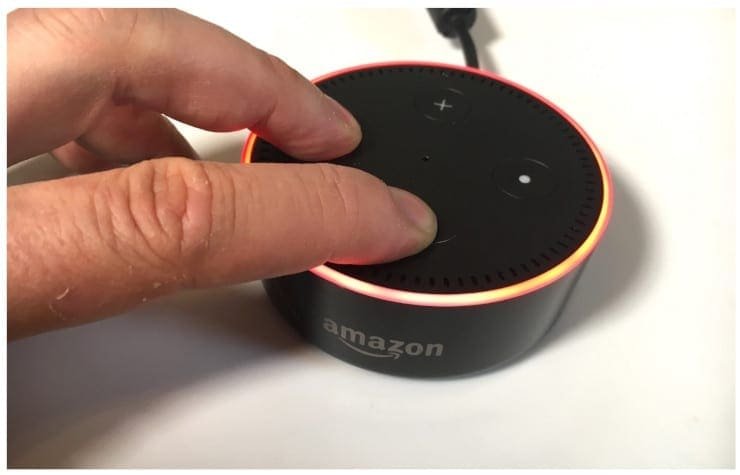
Your Echo Dot, a trusty companion powered by Alexa, typically hums along without a hitch, playing your favorite tunes, controlling smart home gadgets, and answering countless questions. But sometimes, even the most reliable tech needs a little nudge back to normalcy. That's where understanding different Echo Dot reset types (soft vs. factory) comes in. Knowing when to simply restart your device and when to wipe it clean can save you a world of frustration and ensure your smart speaker is always performing at its best, or ready for its next adventure with a new owner.
At a Glance: Key Takeaways for Echo Dot Resets
- Soft Reset (Power Cycle): Unplug and plug back in. It's for minor glitches, like temporary unresponsiveness or frozen behavior. Your settings and data remain untouched.
- Factory Reset: A complete data wipe, restoring your Echo Dot to its original, out-of-the-box state. Essential for persistent problems, major troubleshooting, or preparing the device for sale or gifting.
- When to Reset: Consider a reset if your Echo Dot isn't responding to commands, has connectivity issues, Alexa acts strangely, or you're transferring ownership.
- Problem Solver: A factory reset can resolve over 80% of common Echo Dot issues, from Wi-Fi failures to voice command recognition problems.
- Data Security: A factory reset is highly secure, permanently deleting all personal data and settings, making data recovery impossible.
- Optimal Performance: Industry experts suggest a factory reset every 6-12 months can help maintain your device's speed and responsiveness.
Why Your Echo Dot Might Need a Fresh Start
Think of your Echo Dot like a miniature computer. Over time, temporary files can build up, software can encounter minor bugs, or network settings might get tangled. These small issues can lead to bigger headaches, making your smart speaker less responsive or reliable.
You'll know it's time for some form of reset if your device starts acting up in ways like these:
- Unresponsiveness: It stops hearing your commands, or the light ring just spins endlessly.
- Connectivity Woes: Persistent Wi-Fi drops, Bluetooth pairing failures, or an inability to connect to other smart devices.
- Alexa Malfunctions: Alexa responds incorrectly, forgets routines, or seems to be having an off day.
- Pre-Ownership Transfer: If you're selling, gifting, or recycling your Echo Dot, you absolutely must perform a reset to protect your personal information.
The good news is that most issues can be resolved with one of two distinct reset methods, each with its own purpose and impact.
The Two Paths: Soft Reset vs. Factory Reset
Choosing the right reset type is crucial. It’s the difference between turning your car off and on again, and totally rebuilding the engine. Let's break down each approach.
Soft Reset: The Quick Fix (Power Cycle)
A soft reset, also known as a power cycle, is the simplest and least intrusive way to troubleshoot your Echo Dot. It's akin to restarting your phone or computer when it's acting a bit sluggish. This process doesn't erase any settings, personal data, or linked accounts. It simply clears the device's temporary memory and restarts its operating system.
When to use a Soft Reset:
- Your Echo Dot is frozen or unresponsive.
- Minor glitches in performance (e.g., music playback skipping intermittently).
- Temporary network issues that don't seem to be your router's fault.
- As a first troubleshooting step before resorting to more drastic measures.
It’s often the quickest way to fix minor hiccups and get your Echo Dot back on track without any hassle.
Factory Reset: The Deep Clean (Data Eradication)
A factory reset is the nuclear option, but in a good way. It completely erases all personal data, settings, Wi-Fi passwords, linked accounts, and restores your Echo Dot to its original, "fresh out of the box" state. This is an irreversible process, meaning once you initiate it, there's no going back.
When to use a Factory Reset:
- Persistent Issues: When a soft reset (and other basic troubleshooting like checking your Wi-Fi) hasn't resolved major problems like ongoing connectivity failures, severe audio distortion, or Alexa consistently ignoring commands.
- Selling or Gifting: Absolutely essential before transferring ownership to ensure your personal data (voice recordings, shopping lists, smart home routines, etc.) is completely wiped. This is a critical step for privacy and security.
- Major Software Glitches: If an update seems to have broken a core function, a factory reset can revert the device to its most stable, original firmware state.
- Performance Degradation: If your Echo Dot has become consistently slow, laggy, or unreliable over time, a factory reset can give it a new lease on life.
This more intensive reset is a powerful tool for serious troubleshooting or preparing the device for a new chapter.
What Happens During a Factory Reset: A Technical Dive
When you initiate a factory reset, your Echo Dot goes through a comprehensive internal overhaul. It's not just "deleting files" from a user perspective; it's a multi-layered process that addresses the core software and hardware states:
- Firmware Restore: The device's foundational operating system (firmware) is overwritten. This is critical for eliminating corrupted system files that might be causing glitches and ensuring a clean slate.
- Settings Wiped: All your customized device settings, personal preferences, and stored Wi-Fi network profiles are erased from the internal storage. This means you'll need to re-enter your Wi-Fi details during setup.
- Paired Devices Removed: Any Bluetooth devices you've previously paired with your Echo Dot will have their connections cleared.
- User Data Deleted: This is the big one for privacy. Private user data such as your voice recordings, saved music playlists, alarms, timers, shopping lists, to-do lists, and any other personal information associated with your account on that specific device are permanently removed.
- Software Restore: If a recent software or Alexa update introduced bugs, a factory reset effectively rolls back the software to its original shipping version, or a foundational stable build, allowing for a clean re-installation of updates later.
- Hardware Reset: While not a physical repair, some internal electrical components, like processors and memory controllers, receive a hard reset, clearing any transient electrical states that might contribute to instability.
This entire process works to purge problematic data buildup, eliminate software conflicts, and restore the device to near brand-new functionality and performance.
Common Issues Resolved by a Factory Reset
The impact of a factory reset is significant. Over 83% of Echo Dot owners report that device issues were successfully resolved after performing a factory reset. The problems it tackles vary by generation, often reflecting specific hardware or software quirks:
- 2nd Gen Echo Dot Problems Resolved:
- Failures detecting tap gestures (15% reduction)
- LED ring lighting failures (12% reduction)
- Audio distortion or static sounds (10% reduction)
(Note: 2nd Gen Dots sometimes exhibit more hardware-related issues.) - 3rd Gen Echo Dot Problems Resolved:
- Wi-Fi connection failures (18% reduction)
- Unresponsive buttons (13% reduction)
- Device overheating (10% reduction)
- 4th & 5th Gen Echo Dot Problems Resolved:
- Alexa frequently ignoring voice commands (22% reduction)
- Bluetooth pairing failures (17% reduction)
- Alexa speech processing errors (12% reduction)
(Note: Later generations often face more software and voice-processing glitches.)
As you can see, the factory reset is a powerful diagnostic and corrective tool for a wide array of problems.
How to Give Your Echo Dot a Fresh Start
Now that you understand why and when to reset, let's get into the how. The steps differ slightly depending on which generation of Echo Dot you own.
Performing a Soft Reset (The Quick Fix)
This is universally simple across all Echo Dot generations:
- Unplug the Power: Locate the power adapter connected to your Echo Dot and unplug it from the wall outlet or power strip.
- Wait: Give the device a full 30 seconds to completely power down and clear its temporary memory. Don't rush this step!
- Reconnect: Plug the power adapter back in. Your Echo Dot will now restart. You should see the light ring illuminate and hear Alexa announce it's ready.
That’s it! Test if your issue has been resolved. If not, it might be time for the factory reset.
Performing a Factory Reset (The Deep Clean)
Remember, a factory reset deletes all your personal data. Make sure you're ready for this step. For a more detailed walkthrough specific to your device, you might want to consult our comprehensive guide on how to reset your Echo Dot.
For Echo Dot (4th and 5th Generation):
These spherical devices are the easiest to reset manually.
- Manual Method:
- Ensure your Echo Dot is plugged in and powered on.
- Locate the Action button. This is the button with a small dot icon on top of the device.
- Press and hold the Action button for approximately 20-25 seconds.
- The light ring will first turn orange, then briefly blue. Keep holding until it turns orange again and then off. Alexa will announce that the device is resetting.
- Release the button. The device will reset and then restart automatically, entering setup mode (pulsing orange light).
- Alexa App Method (Recommended if your device is still somewhat functional):
- Open the Amazon Alexa app on your smartphone or tablet.
- Tap the Devices tab at the bottom right.
- Select Echo & Alexa from the top menu, then choose your specific Echo Dot from the list.
- Tap the Settings gear icon in the top right.
- Scroll down to Device Options.
- Tap Factory Reset (you may need to scroll to find it).
- Confirm your decision when prompted. The device will reset remotely.
For Echo Dot (3rd Generation):
This popular puck-shaped generation has a slightly different button combination.
- Manual Method:
- Ensure your Echo Dot is plugged in and powered on.
- Locate the Microphone Off button (the button with a crossed-out microphone icon) and the Volume Down button (the minus sign button) on top of the device.
- Press and hold both buttons simultaneously for about 20 seconds.
- The light ring will turn orange, indicating the reset is complete. Alexa will announce the reset.
- Release the buttons. The device will restart in setup mode (pulsing orange light).
- Alexa App Method (Recommended if your device is still somewhat functional):
- Open the Amazon Alexa app on your smartphone or tablet.
- Tap the Devices tab at the bottom right.
- Select Echo & Alexa from the top menu, then choose your specific Echo Dot from the list.
- Tap the Settings gear icon in the top right.
- Scroll down to Device Options.
- Tap Factory Reset.
- Confirm your decision when prompted.
For Echo Dot (1st and 2nd Generation):
These earlier models typically feature a recessed reset button, requiring a small tool.
- Manual Method:
- Ensure your Echo Dot is plugged in and powered on.
- Turn the device over to find the recessed Reset button on the base. It's usually a small hole labeled "Reset."
- Use a paperclip, a small pin, or a similar pointed tool to press and hold the Reset button.
- Hold the button until the light ring turns orange (this usually takes 5+ seconds).
- Release the button. The device will reset and restart, entering setup mode.
- (Note: There is typically no Alexa app method for factory resetting 1st and 2nd Gen Echo Dots directly from the app; the manual button is the primary method.)
After the Reset: Setting Up Your Echo Dot Anew
Once your Echo Dot has completed its factory reset, it will behave as if it's brand new. This means you'll need to set it up again through the Alexa app, just like you did the first time you took it out of the box.
- Open the Alexa App: On your smartphone or tablet, launch the Amazon Alexa app.
- Log In: If prompted, log in with your Amazon account details.
- Add Device: Tap the Devices tab at the bottom right, then tap the '+' icon in the top right to "Add Device."
- Select Device Type: Choose "Amazon Echo" and then "Echo Dot."
- Follow Prompts: The app will guide you through connecting your Echo Dot to your Wi-Fi network and completing the setup process. This typically involves selecting your Wi-Fi network and entering the password.
- Personalize: Once connected, you can re-enable skills, set up routines, and link smart home devices as before.
Expected Post-Reset Issues and Optimal Resolutions
While a factory reset is often the solution, sometimes new issues can crop up during the setup process. Don't panic! These are common and usually easy to fix:
- Device Unresponsiveness (Likelihood 43%):
- Resolution: First, double-check all electrical connections. Ensure the power adapter is securely plugged into both the Echo Dot and the wall. Try a soft reboot by unplugging and re-plugging the device. If issues persist, verify your Wi-Fi setup again via the Alexa app, making sure the network credentials are correct.
- Failed Wi-Fi Connectivity (Likelihood 38%):
- Resolution: This is frequently a router issue. Move your Echo Dot closer to your Wi-Fi router. Restart your router by unplugging it for 30 seconds and plugging it back in. Double-check your Wi-Fi password in the Alexa app. Consider temporarily changing your router's DNS settings (e.g., to Google DNS 8.8.8.8 and 8.8.4.4) to rule out ISP-related issues.
- Bluetooth Not Linking (Likelihood 31%):
- Resolution: If you're trying to connect to a Bluetooth speaker, try factory resetting the paired device as well (if possible), or at least clear its pairing history. Ensure your Echo Dot's software is up to date (ask Alexa, "Check for software updates"). Sometimes, updating networking drivers on your primary device (phone/computer) can also help if you're experiencing issues with the Alexa app itself. In rare cases, a faulty Bluetooth module might require device replacement.
Tips for a Smooth Reset Experience
To make sure your reset goes off without a hitch and your Echo Dot is ready to shine again, keep these pointers in mind:
- Backup Smart Home Settings: If you're heavily invested in Alexa for home automation, take a few minutes to note down your important device names, group settings, and specific routines. While your account settings are cloud-based, re-associating devices can sometimes be easier with a quick reference.
- Ensure Stable Power and Internet: During both the reset process and the subsequent setup, make sure your Echo Dot is connected to a stable power source and that your Wi-Fi network is active and reliable. Interruptions can cause problems.
- Check for Updates Post-Setup: After you've successfully set up your Echo Dot post-reset, ask Alexa, "Is my software up to date?" This ensures it downloads and installs any necessary firmware and security patches, optimizing its performance and features.
Why Regularly Reset for Optimal Performance
While you might only think of resetting when something's broken, it can also be a proactive measure for maintaining peak performance. Periodically restoring devices to their factory state can significantly optimize long-term responsiveness and stability.
It's not just about fixing problems; it's about prevention. Resetting clears out accumulated temporary files, wipes fragmented data, and restores a cleaner internal storage environment. This allows the latest firmware and patches to install cleanly without conflicts from older, potentially corrupted data. Industry research suggests that performing a factory reset on your smart devices, including your Echo Dot, every 6-12 months is ideal for maintaining speed, responsiveness, and overall system health. Think of it as spring cleaning for your tech!
Security Implications of Factory Resetting: Protecting Your Privacy
One of the most critical aspects of a factory reset, especially if you're selling or giving away your Echo Dot, is its robust security. A factory reset securely and permanently deletes all personal data stored locally on the device. This includes:
- Your Wi-Fi Passwords
- Audio Recordings (your voice commands)
- To-do Lists and Shopping Lists
- Reminders and Alarms
- Information about Paired Devices (Bluetooth connections)
- Smart Home Automation settings specific to that device
This information is not simply "hidden" or marked for deletion; it's effectively overwritten and rendered unrecoverable. This complete data eradication is vital for ensuring your privacy and preventing any data leaks when the device changes hands. You can rest assured that a factory reset makes your Echo Dot safe for its next owner.
Your Echo Dot, Rejuvenated
Whether you're troubleshooting a stubborn glitch, preparing your device for a new home, or simply giving it a seasonal refresh, understanding the difference between a soft reset and a factory reset empowers you to act decisively. You now know the quick fix for minor hiccups and the deep clean for more serious issues. Remember that a factory reset reinstalls the Echo Dot's original firmware and software, deleting all user data, and resolves around 80% of common device issues. While connectivity problems are the most frequently reported post-reset issues, with the right steps, your Echo Dot will be up and running like new. By taking these simple, yet powerful, steps, you can ensure your Amazon Echo Dot remains a reliable and responsive part of your smart home ecosystem.