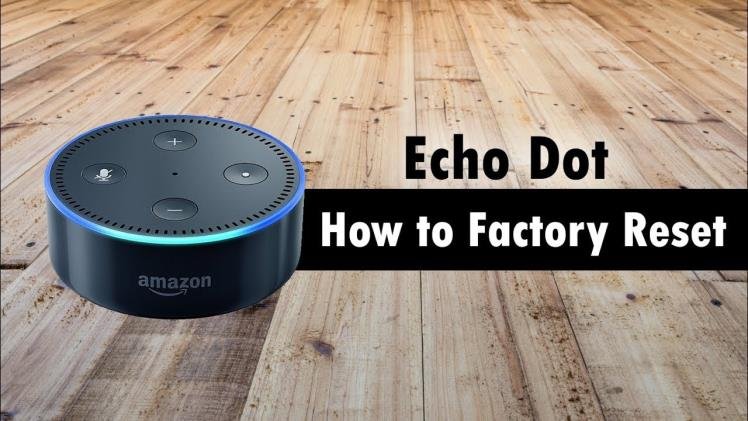
Think of your Amazon Echo Dot as a digital canvas. When it starts acting up—freezing, disconnecting, or just plain ignoring you—a factory reset is like hosing down that canvas, preparing it for a fresh start. But what happens after you reset your Echo Dot, and how exactly do you bring it back to life with all your favorite settings? It’s not just about pressing a button; it’s about understanding the journey back to a fully functional, personalized smart speaker.
This isn't a complex operation, but knowing what to expect can save you a lot of head-scratching. Whether you're troubleshooting persistent glitches, preparing to sell your device, or simply want a clean slate, a factory reset is a powerful tool. Let's walk through what goes down and how to get your Dot singing (and listening) again.
At a Glance: Your Post-Reset Roadmap
- It's a Clean Slate: Your Echo Dot will revert to its original, out-of-the-box settings. All your personal data is wiped.
- No Wi-Fi Connection: The device forgets your home network and needs to be reconnected.
- Requires Re-Setup: You'll use the Alexa app to set it up as if it were brand new.
- Personalization Lost (on device): Routines, skills, voice profiles, and linked services (like Spotify) will need to be reconfigured or re-enabled.
- Amazon Account Intact: Your core Amazon account details and purchase history remain untouched in the cloud.
- Troubleshooting Possible: Don't panic if it doesn't go perfectly; common issues usually have simple fixes.
Why You Might Need to Reset Your Echo Dot
Before we dive into the "after," let's quickly touch on the "why." A factory reset is a powerful troubleshooting step, often a last resort when other fixes fail. You might consider it if your Echo Dot is:
- Unresponsive or Glitchy: Not responding to commands, freezing, or behaving erratically.
- Experiencing Connectivity Issues: Frequently dropping Wi-Fi, unable to connect, or showing persistent network errors.
- Having Audio Problems: Sound cutting out, distorted, or not playing at all (after checking basic volume and mute settings).
- Being Sold or Gifted: To protect your privacy and ensure the next owner gets a clean device.
- Suffering from "Skill Overload": Sometimes, too many conflicting skills can cause issues that a fresh start can resolve.
While there are many minor issues that can be fixed with a simple restart or network tweak, a factory reset is the ultimate "turn it off and on again" for your smart speaker. If you need a refresher on the exact steps to initiate a factory reset, our comprehensive guide on How to reset your Echo Dot can walk you through it.
The Immediate Aftermath: What Happens During a Factory Reset
When you perform a factory reset, you're not just restarting the device; you're wiping its memory clean. Imagine erasing the whiteboard in a classroom – all the previous notes, drawings, and lessons are gone.
Here’s a breakdown of what exactly gets erased and what remains:
- Internal Data Wipe:
- Wi-Fi Network Credentials: Your Echo Dot forgets your home Wi-Fi network and password. It will no longer automatically connect.
- Linked Accounts (on device): Connections to streaming services like Spotify, Pandora, or Apple Music are removed from the device's local memory.
- Voice Profiles: Any individual voice profiles created for household members are deleted from the device.
- Device-Specific Settings: Things like volume preferences, alarm sounds, and Bluetooth pairings are reset to their defaults.
- Smart Home Device Connections (local): If your Echo Dot acted as a hub for certain Zigbee devices, these connections would be severed on the Dot itself.
- Local History & Cache: Any temporary data, logs, or cache files stored on the device are cleared.
- What Stays Intact (in the cloud):
- Your Amazon Account: Your primary Amazon account information, linked payment methods, and purchase history are safe and sound in Amazon's cloud servers. The reset only severs the device's connection to your account, not the account itself.
- Enabled Alexa Skills: While the device forgets them, the skills you've enabled in your Alexa app remain active for your Amazon account. You'll just need to re-link them to the device during setup.
- Alexa Routines: Similar to skills, your pre-configured routines are tied to your Amazon account, not just one specific Echo Dot. They'll reappear in your Alexa app, ready to be re-associated with the newly set-up device.
- Shopping Lists & Reminders: These are stored on your Alexa account and will be accessible once the device is re-registered.
- Voice Recordings: Your past voice interactions, if you've opted to save them, are stored in your Alexa privacy settings online, not on the Echo Dot itself.
In essence, the Echo Dot returns to the state it was in when you first unboxed it – ready to be configured by a new owner, or re-adopted by you.
The Post-Reset State: A Blank Canvas
Once the factory reset process is complete (typically indicated by the light ring changing colors – orange, then blue, then off, then on again), your Echo Dot will be in "setup mode." This means:
- Orange Light Ring: The signature orange light ring will cycle, indicating it's ready for initial setup. This is Alexa's way of saying, "Hello, I'm new here! Please connect me to the internet."
- No Voice Response: It won't respond to "Alexa" commands because it's not yet connected to the internet or registered to an Amazon account.
- Default Settings: Volume will be at a default level, no alarms or timers set, no music playing. It's a clean slate, waiting for your touch.
This is the perfect starting point to reintroduce your Echo Dot to your digital life.
Getting Ready to Re-Set Up Your Echo Dot
Before you dive into the Alexa app, a little preparation goes a long way to ensure a smooth re-setup process. Think of it as gathering your tools before starting a project.
- Your Smartphone or Tablet: Make sure you have the latest version of the Alexa app installed. If you don't have it, download it from your device's app store (iOS App Store or Google Play Store).
- Your Amazon Account Credentials: You'll need the email address and password associated with your Amazon account (the same one you used to set up the Echo Dot originally).
- Your Wi-Fi Network Name (SSID) and Password: This is crucial. Double-check that you have the correct password, especially if it's a long string of characters.
- Stable Internet Connection: Ensure your Wi-Fi network is active and has a strong signal in the location where you'll be setting up the Echo Dot. A reliable network with a strong signal is crucial to avoid interruptions.
- Patience: The process isn't instant and may take a few minutes. Avoid interrupting it.
Step-by-Step Guide: Setting Up Your Echo Dot Again
Now for the main event! Re-setting up your Echo Dot is just like setting it up for the very first time. The Alexa app guides you through it seamlessly.
1. Open the Alexa App
Launch the Alexa app on your smartphone or tablet. Ensure you're logged into the correct Amazon account. If you have multiple accounts, log into the one you want associated with your Echo Dot.
2. Add a New Device
- From the home screen of the Alexa app, tap the "Devices" icon at the bottom right.
- Tap the "+" icon in the top right corner.
- Select "Add Device."
3. Select Device Type
- The app will present a list of Amazon devices. Tap on "Amazon Echo."
- Next, choose "Echo Dot."
- The app might then ask you to specify the generation of your Echo Dot (e.g., 3rd Generation, 4th Generation). This helps the app tailor instructions, as newer models might have slightly different button layouts or light ring behaviors. If you're unsure, you can often find the generation printed on the bottom of your device or its original packaging.
4. Power On Your Echo Dot and Wait for the Orange Light
- Plug your Echo Dot into a power outlet.
- The light ring around the top will illuminate and likely cycle through different colors before settling on a solid orange light. This indicates it's in setup mode and ready to connect.
- If your Echo Dot doesn't show an orange light after a minute or two, try unplugging it and plugging it back in. If it still doesn't appear, you might need to repeat the factory reset process to ensure it was successful.
5. Connect to the Echo Dot's Wi-Fi Hotspot
The Alexa app will prompt you to connect your phone to a temporary Wi-Fi network broadcast by your Echo Dot.
- You'll typically see a message like "Echo Dot-XXX" or "Amazon-XXX" in your phone's Wi-Fi settings.
- Follow the on-screen instructions in the Alexa app, which will usually involve navigating to your phone's Wi-Fi settings, selecting this temporary network, and then returning to the Alexa app.
6. Connect to Your Home Wi-Fi Network
Once your phone is temporarily connected to the Echo Dot, the Alexa app will ask you to select your home Wi-Fi network from a list of available networks.
- Choose your Wi-Fi network.
- Enter your Wi-Fi password when prompted. Double-check for typos!
- Tap "Connect."
- Your Echo Dot will attempt to connect to your home network. The light ring will usually turn blue, then off, before turning blue again to confirm a successful connection. Alexa will also audibly confirm, "Your Echo Dot is now connected."
7. Confirm Location and Time Zone
- The Alexa app will likely ask you to confirm or enter your location. This is important for accurate weather reports, local news, and other location-based services.
- Confirm your time zone as well, which impacts alarms and reminders.
8. Personalize Your Settings
This is where you bring your Echo Dot back to life with all your preferences. The Alexa app will walk you through a series of customization options, which may include:
- Assigning a Room: Giving your device a location (e.g., "Living Room Echo Dot").
- Enabling Voice Profiles: If you want Alexa to recognize individual voices and tailor responses.
- Setting Up a Default Music Service: Linking your preferred music streaming account (Spotify, Amazon Music, Apple Music, etc.).
- Communication Settings: Enabling features like Drop In, announcements, and calling.
- Linking Smart Home Devices: This is a big one. You'll need to re-discover and re-link any smart home devices (lights, thermostats, plugs) that were previously connected to this Echo Dot or your Alexa account. The app typically offers to scan for new devices.
- Enabling Skills: While skills are tied to your Amazon account, you might want to review and re-enable specific skills for this device or ensure your favorite ones are active.
- Creating or Assigning Routines: Your routines will appear in the app, but you may need to ensure they're assigned to the correct device or trigger correctly based on the re-setup.
Take your time with this step. The more thoroughly you personalize now, the better your experience will be.
Rebuilding Your Smart Home Ecosystem
If your Echo Dot was a central part of a larger smart home setup, the post-reset period requires a bit more attention. While your Alexa app remembers which devices are part of your smart home, the Echo Dot itself needs to re-establish its connection and role.
- Discovery is Key: After re-setting up your Echo Dot, head to the "Devices" section in the Alexa app, then "All Devices," and look for an option to "Discover Devices." This allows your Dot to find and reconnect with smart lights, plugs, thermostats, and other compatible gadgets on your network.
- Re-linking Accounts: For many smart home brands (e.g., Philips Hue, SmartThings, Ring), you'll need to re-link their respective skills or accounts within the Alexa app to ensure full functionality. This typically involves logging into the third-party service through the Alexa app.
- Multi-Echo Setup: If you have multiple Echo devices, you might need to re-assign devices to specific rooms or groups to maintain your synchronized smart home experience.
Don't be discouraged if some devices don't immediately respond. A re-discovery process, restarting the smart home devices themselves, or even power cycling your router can often resolve lingering connectivity issues.
Recovering Your Personalized Settings: What's Gone and What's Not
The biggest initial hurdle after a reset is the feeling of having lost all your customization. However, much of what makes your Echo Dot yours is actually stored in your Alexa cloud profile, not on the device itself.
- What You'll Need to Re-do Manually:
- Voice ID Training: While your voice profile remains in the cloud, you'll need to retrain Alexa to recognize your voice on the newly configured device for personalized responses.
- Bluetooth Pairings: Any devices you had paired via Bluetooth will need to be re-paired.
- Preferred Speaker Settings: If you used your Echo Dot as part of a stereo pair or multi-room music group, those groups will need to be re-established.
- Device-Specific Alarms/Timers: These are localized to the device and will be gone. You'll need to set them again.
- What Will Sync Back Automatically (after re-setup):
- Your Enabled Skills: All the skills you've added to your Alexa account will be available. You might just need to enable a few for your specific device.
- Your Routines: They'll show up in the Alexa app, ready to be triggered by your newly configured Echo Dot.
- Shopping and To-Do Lists: These are account-wide.
- Music Service Links (Account Level): While the device forgets, your Alexa account remembers your preferred streaming services. You'll often just need to confirm or re-select them.
Think of it this way: your Alexa account is the brain, and the Echo Dot is just a voice and ear for that brain. The reset wipes the local memory of the ear, but the brain's knowledge is untouched.
Troubleshooting Common Issues Post-Reset
Even with careful planning, sometimes things don't go exactly as expected. Here are some common problems you might encounter after a factory reset and how to tackle them:
1. Echo Dot Not Connecting to Wi-Fi
This is the most frequent issue.
- Double-Check Password: The number one culprit is an incorrect Wi-Fi password. Ensure you're typing it accurately.
- Restart Router: Unplug your Wi-Fi router for 30 seconds, then plug it back in. Wait for it to fully restart before trying to connect your Echo Dot again.
- Move Closer: Bring your Echo Dot closer to your Wi-Fi router to rule out signal strength issues.
- Check Network Band: Most Echo Dots prefer 2.4GHz Wi-Fi networks. If your router broadcasts both 2.4GHz and 5GHz networks, try connecting to the 2.4GHz one.
- Forget Network: On your phone, go to Wi-Fi settings, find your home network, and choose "Forget This Network," then reconnect your phone. This can sometimes clear up cached network issues.
2. Voice Commands Not Working
If Alexa isn't responding or understanding you after setup:
- Check the Mute Button: Ensure the microphone mute button (usually a circle with a slash through it) on top of your Echo Dot isn't illuminated red. If it is, press it to unmute.
- Re-enable Skills: In the Alexa app, go to "Skills & Games" and ensure any critical skills are re-enabled.
- Verify Voice Training: Complete the voice profile training again in the Alexa app (Settings > Your Profile > Voice ID) to ensure Alexa accurately recognizes your voice.
- Review Activity: In the Alexa app, go to "More" > "Activity" > "Voice History" to see what Alexa heard (or didn't hear).
3. Device Not Responding After Setup Appears Complete
Sometimes the setup seems finished, but the Dot remains unresponsive.
- Power Cycle: Unplug the Echo Dot from its power adapter, wait 10-15 seconds, and then plug it back in. This often resolves minor glitches.
- Check Power Adapter: Ensure the power adapter is firmly connected to both the Echo Dot and the wall outlet. Use the original Amazon power adapter if possible.
- Try a Different Outlet: Rule out a faulty wall outlet by plugging the Echo Dot into another one.
4. Factory Reset Procedure Was Unsuccessful
If your Echo Dot isn't showing the orange light and remains unresponsive, the initial reset might not have completed.
- Repeat the Reset: Carefully repeat the factory reset procedure, making sure you press and hold the reset button for the full 25 seconds. Ensure the light ring goes through all its changes (orange, blue, off, then on again).
- Stable Internet: Although the reset process doesn't require an internet connection, a stable environment can prevent further issues.
- Correct Tool: Use a thin, sturdy tool like a paperclip for the reset button. Sometimes a flimsy object won't make proper contact.
If issues persist or you encounter difficulties during the factory reset or re-setup that these steps don't resolve, don't hesitate to contact Amazon support for personalized guidance and assistance. They have diagnostic tools and can often provide more specific solutions for your particular device or account.
Moving Forward: Empowering Your Echo Dot Once More
A factory reset, while seemingly drastic, is a powerful and often necessary step to restore your Echo Dot's functionality or prepare it for a new chapter. Far from being a destructive act, it’s a renewal, allowing you to re-engage with your smart assistant with a clean slate.
By understanding what happens during and after the reset, and following a clear re-setup process, you empower yourself to troubleshoot effectively and quickly bring your Echo Dot back online. It’s a testament to the robust, user-friendly design of these devices that even a full wipe-and-reinstall is a manageable task, ensuring your smart home remains, well, smart. So go ahead, give your Echo Dot that fresh start—it’ll be back to fetching facts and playing tunes in no time.